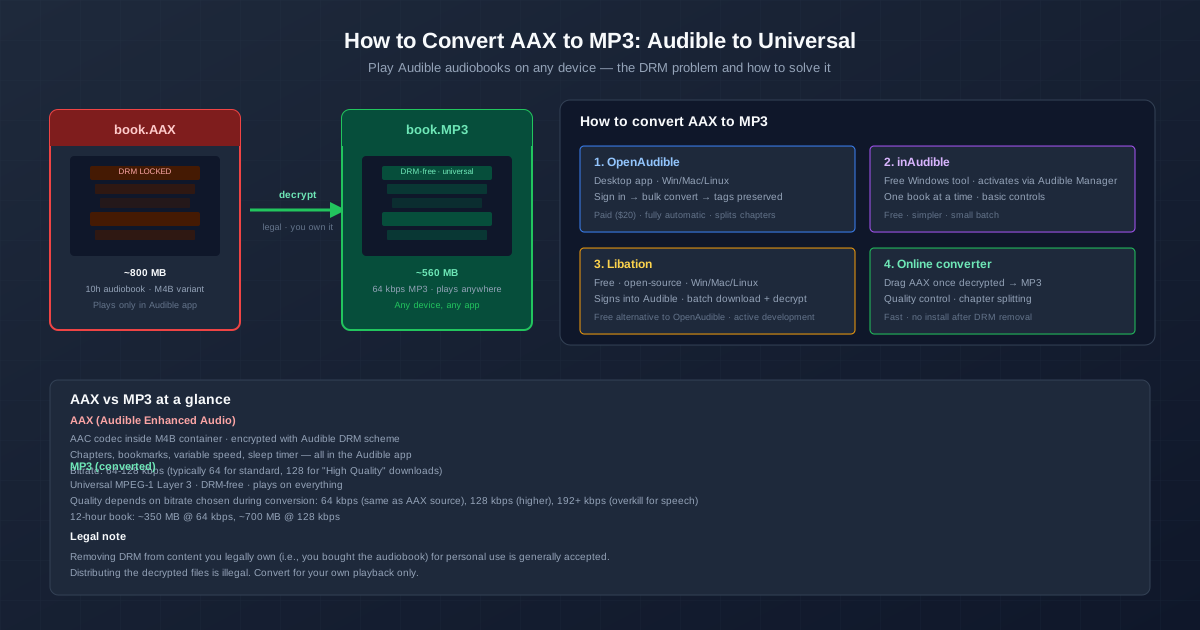
You bought an audiobook on Audible, downloaded the AAX file, and tried to play it in your favourite music app. Silence. The file only works in the Audible app because it is locked with DRM encryption. Here is how to remove that DRM and convert AAX to MP3 — legally, for the books you own — so you can listen anywhere.
The core workflow is simple: use a desktop tool to sign into your Audible account, download your library, and decrypt the files to universal MP3. The three main tools — OpenAudible, Libation, and inAudible — all do this. The choice depends on your budget, OS, and how many books you have.
What AAX Actually Is
AAX is not some exotic audio codec. Under the hood, it is standard AAC audio wrapped in an M4B container — the same M4B container Apple uses for its audiobooks. The difference is the encryption layer. Audible encrypts the audio data so only their app, with the decryption key tied to your account, can decode it.
This means your AAX file contains perfectly good audio that any player could handle — if it were not locked. When you convert AAX to MP3, you are not really converting the audio. You are decrypting it and repackaging it into an MP3 container. The audio data itself stays the same. That is why the process is fast and quality-lossless.
Tool Comparison: OpenAudible vs Libation vs inAudible
| Feature | OpenAudible | Libation | inAudible |
|---|---|---|---|
| Price | $20 (one-time) | Free (open-source) | Free |
| Platforms | Windows, Mac, Linux | Windows, Mac, Linux | Windows only |
| Bulk convert | Yes — entire library at once | Yes — entire library at once | No — one book at a time |
| Chapter preservation | MP3 chapters or split files | MP3 chapters or split files | CUE file alongside MP3 |
| Metadata | Full (cover, narrator, series) | Full (cover, narrator, series) | Basic (title, author) |
| Audible login | Built-in browser sign-in | Built-in browser sign-in | Requires Audible Manager |
| Best for | Large libraries, automation | Large libraries, zero budget | Few books, Windows users |
OpenAudible — the Premium Choice
OpenAudible is a dedicated desktop app for managing and converting Audible libraries. You sign in once, it downloads every book you have ever purchased, decrypts them all in bulk, and exports them to MP3 (or M4B if you prefer). It preserves chapter markers, cover art, narrator, series info, and book descriptions in the MP3 tags. If you have 50+ audiobooks, the $20 price is trivial compared to the hours of manual work it saves.
Libation — the Free Powerhouse
Libation is the open-source answer to OpenAudible. It does the same thing — sign into Audible, download your library, decrypt to MP3/M4B — but it costs nothing and its source code is public. The interface is functional rather than polished, and it has fewer export format options than OpenAudible (MP3 and M4B, no OGG or FLAC). But for the core task of liberating your Audible library, it is fully capable. Active development means it quickly adapts to Audible DRM changes.
inAudible — the Legacy Windows Tool
inAudible is the oldest AAX decryption tool, Windows-only. It works by interacting with Audible Manager (an old desktop app Audible used to distribute before moving to their web player). The setup is more involved — you need Audible Manager installed and authorized — and it handles one book at a time. If you are on Windows and only need to convert one or two books, it works. For anything more, use OpenAudible or Libation.
Step-by-Step: Converting AAX to MP3 with OpenAudible
- Download and install OpenAudible from openaudible.org. Available for Windows, Mac, and Linux.
- Sign into your Audible account through the built-in browser. OpenAudible uses your credentials to access your library — it does not store your password.
- Let it sync your library. OpenAudible downloads every audiobook you have purchased. For a large library (100+ books), this may take a few hours — let it run overnight.
- Select books to convert — or select all. Choose MP3 as the output format and set the bitrate (64 kbps for standard quality, 128 kbps for high quality).
- Click Convert. Each book takes 1-5 minutes depending on length. Chapters are preserved as MP3 metadata or split into separate files, depending on your settings.
- Transfer to your devices. The converted MP3 files are in your OpenAudible library folder. Copy them to your phone, media server, or any MP3 player.
What Bitrate to Choose for Audiobooks
Speech is not music. The human voice occupies a narrow frequency range (roughly 80 Hz to 3 kHz), far less than what MP3 can represent. This means you do not need high bitrates for audiobooks:
| Bitrate | File size (10h book) | Audio quality | Recommendation |
|---|---|---|---|
| 32 kbps | ~175 MB | Acceptable for speech, slightly thin | Smallest file, noticeable on good headphones |
| 64 kbps ★ | ~350 MB | Transparent for speech | Best balance — matches Audible Standard quality |
| 96 kbps | ~520 MB | More than needed for voice | Use only if source was High Quality (128 kbps) |
| 128 kbps | ~700 MB | Overkill for speech alone | Only for Audible High Quality downloads |
| Audible Standard quality is 64 kbps AAC. Converting to 64 kbps MP3 preserves the same quality. Going higher does not add audible detail — the source does not have it. If you downloaded at High Quality (128 kbps), use 96-128 kbps to preserve that extra fidelity. |
Chapter Navigation: Keep Your Place
A 20-hour audiobook without chapters is a nightmare — you lose your place and cannot skip between sections. When converting, make sure your tool preserves chapters:
- OpenAudible: In Settings → Export, enable "Write chapters to MP3 metadata" or "Split by chapter" (creates one MP3 per chapter).
- Libation: In Settings → Download/Decrypt, set "Split by chapter" to your preference. Chapter metadata in MP3 files is on by default.
- inAudible: Generates a .CUE file alongside the MP3. Most audiobook players (Smart Audiobook Player, Bound) can read CUE files for chapter navigation.
For playback, apps like Smart Audiobook Player (Android), Bound (iOS), and Voice (iOS) read MP3 chapter metadata. If you split by chapter, any music player handles the files — but you lose the ability to see the book as one unit with chapter navigation. Embedding chapters in a single MP3 is better for most users.
The AAXC Problem — Newer DRM
Audible introduced AAXC, a newer format with stronger encryption, for some recent titles. AAXC uses a different DRM scheme that is harder to decrypt. OpenAudible and Libation both work with most AAXC files, but support can lag behind Audible's DRM updates by weeks or months. If you download a book and the tool cannot decrypt it, check if there is an update available. inAudible generally does not support AAXC.
You can tell which format you have by the file extension: .aax is the older format (AAC in M4B, standard DRM), .aaxc is the newer format (AAC in M4B, enhanced DRM). Both usually work with current versions of OpenAudible and Libation, but AAXC may require the latest update.
MP3 vs M4B: Which Output Format?
Both OpenAudible and Libation let you choose between MP3 and M4B output. M4B is technically better for audiobooks — it supports bookmarks, remembers playback position, and handles chapters natively. MP3 is universally compatible — every device made in the last 25 years plays MP3. Here is the decision:
- Choose M4B if you listen on an iPhone/iPad (Apple Books handles M4B perfectly) or use an audiobook-specific player that supports M4B chapters.
- Choose MP3 if you listen on a car stereo, an old MP3 player, a smart speaker, or any device where you are not sure about M4B support. MP3 is the safe default. If you need MP3 for universal playback but also want to keep the original quality for archival, export both — OpenAudible lets you create multiple output formats from the same source.
What About Online Converters?
Online AAX to MP3 converters exist, but they cannot decrypt DRM. They can only convert an AAX file that has already been decrypted. This means online converters are useful as a second step: use OpenAudible or Libation to decrypt your AAX files on your computer, then use an online AAX to MP3 converter to handle the format conversion and optional compression settings. The online converter takes the already-decrypted audio and produces an MP3 with your chosen bitrate, chapter splitting, and metadata — no desktop software needed for this step.
Related Tools
Once you have your audiobook as an MP3, you might need other audio conversions. Use M4A to MP3 converter for converting Apple Music or Voice Memos files. The OGG to MP3 converter handles audiobooks downloaded in the open-source OGG Vorbis format. For comparing audio formats to decide which to use, see MP3 vs AAC — AAC is what AAX wraps under the DRM, so understanding the difference helps when choosing your output format.
Quick Summary
- AAX is AAC audio with DRM encryption. Decrypt it, repackage as MP3, and it plays anywhere.
- OpenAudible ($20) for large libraries — bulk download, decrypt, and export with full metadata and chapters.
- Libation (free) for the same features at no cost — open-source, active development, slightly less polished.
- inAudible (free, Windows only) for occasional use — one book at a time, legacy setup process.
- 64 kbps is the sweet spot for speech. Going higher does not improve what the human voice can produce.
- Keep chapters — embed them as MP3 metadata, or split by chapter for maximum player compatibility.
- For personal use only. Distributing decrypted files is illegal. Convert for your own devices, not for sharing.