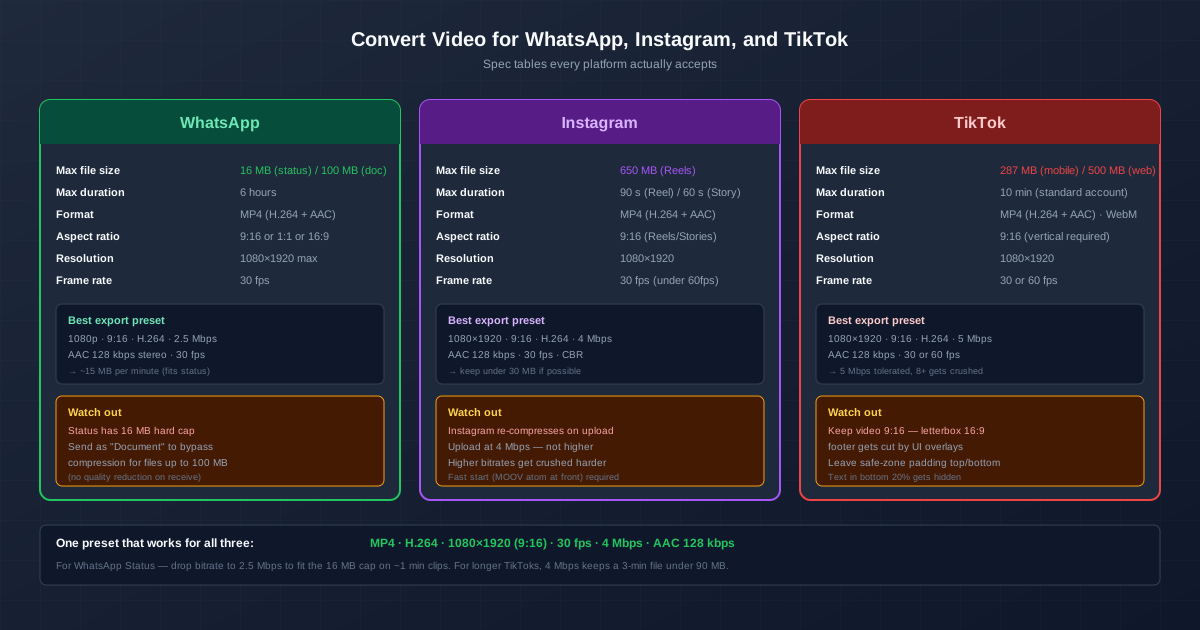
WhatsApp, Instagram, and TikTok each have their own video specifications — file size limits, accepted codecs, aspect ratios, and bitrate ceilings. Uploading the wrong format means the platform recompresses your video, often making it look noticeably worse. The good news is that one export preset covers all three platforms acceptably, with small tweaks for each.
The short version: export MP4 with H.264 video and AAC audio, at 1080×1920 (9:16 vertical), 30 fps, and a 4 Mbps video bitrate. That file plays on WhatsApp, Instagram Reels, and TikTok without issues. The detailed specs below explain where to adjust for each platform's quirks.
Why Each Platform Has Different Specs
Each platform optimises for its own constraints. WhatsApp cares about bandwidth — most videos are watched on mobile data, so the limits are tight. Instagram recompresses every upload through its own encoder to keep CDN costs predictable.
TikTok handles high bitrates better than Instagram but enforces vertical aspect ratios because horizontal video underperforms in the feed. Knowing the "why" behind each limit helps you pick settings that survive the platform's processing with minimal quality loss.
WhatsApp: The Tightest Limits
WhatsApp has the strictest video constraints of the three. The platform is designed for quick mobile-data viewing, so it enforces small file sizes by recompressing aggressively on send.
| Max file size (Status) | 16 MB |
|---|---|
| Max file size (Document) | 100 MB — sent uncompressed |
| --- | --- |
| Max duration | 6 hours |
| --- | --- |
| Format | MP4 (H.264 + AAC) |
| --- | --- |
| Aspect ratio | 9:16, 1:1, or 16:9 |
| --- | --- |
| Resolution | Up to 1080×1920 |
| --- | --- |
| Frame rate | 30 fps |
| --- | --- |
| For WhatsApp Status, the 16 MB cap is the binding constraint. A one-minute 1080p clip at 2.5 Mbps comes in around 15 MB — right at the edge. If your clip runs longer, drop the resolution to 720×1280 or cut the bitrate to 1.5 Mbps. |
For sharing high-quality video (a finished edit, a family video), use the Document attachment option rather than the regular video picker.
WhatsApp sends files up to 100 MB as-is, with no recompression. The recipient downloads and plays the original.
Instagram Reels and Stories
Instagram accepts larger files than WhatsApp but recompresses every upload through its own encoder. The trick is to upload at a bitrate high enough to look good but low enough that Instagram's recompression does not have to throw away too much data.
| Max file size | 650 MB (Reels) |
|---|---|
| Max duration | 90 s (Reel), 60 s (Story) |
| --- | --- |
| Format | MP4 (H.264 + AAC) |
| --- | --- |
| Aspect ratio | 9:16 (Reels and Stories) |
| --- | --- |
| Resolution | 1080×1920 |
| --- | --- |
| Frame rate | 30 fps (under 60 fps) |
| --- | --- |
| Export at 4 Mbps video bitrate with AAC audio at 128 kbps. Higher bitrates do not help — Instagram recompresses anything you upload, and very high bitrates (8+ Mbps) often produce worse results because the recompression is more aggressive. The Web Optimized flag (or +faststart in FFmpeg) is important: it moves the MOOV atom to the front of the file so Instagram can begin processing without reading the whole file first. |
TikTok
TikTok handles the largest files and highest bitrates of the three. It also has the strictest aspect-ratio requirement: vertical 9:16 is effectively mandatory, because horizontal videos perform poorly in the feed.
| Max file size | 287 MB (mobile), 500 MB (web upload) |
|---|---|
| Max duration | 10 min (standard account), longer for some |
| --- | --- |
| Format | MP4 (H.264 + AAC), WebM |
| --- | --- |
| Aspect ratio | 9:16 (vertical required) |
| --- | --- |
| Resolution | 1080×1920 |
| --- | --- |
| Frame rate | 30 or 60 fps |
| --- | --- |
| A 4-5 Mbps bitrate at 1080×1920 looks sharp on TikTok without triggering heavy recompression. 60 fps is supported and looks smoother for action content, but the file size roughly doubles. The main TikTok-specific issue is the safe zone: TikTok overlays the username, caption, and music information in the bottom 20% of the screen, plus right-side icons. Keep important content and text out of those regions or they get obscured. |
The Universal Export Preset
If you produce one file and want it to work across all three platforms, use these settings:
| Container | MP4 |
|---|---|
| Video codec | H.264 (x264) |
| --- | --- |
| Resolution | 1080×1920 |
| --- | --- |
| Aspect ratio | 9:16 vertical |
| --- | --- |
| Frame rate | 30 fps |
| --- | --- |
| Video bitrate | 4 Mbps (CBR or VBR capped) |
| --- | --- |
| Audio codec | AAC, 128 kbps stereo |
| --- | --- |
| Web optimised | Yes (fast start / MOOV at front) |
| --- | --- |
| This produces a file around 30 MB per minute — acceptable for Instagram and TikTok. For WhatsApp Status, drop the bitrate to 2.5 Mbps to fit the 16 MB cap on roughly one-minute clips. |
FFmpeg Commands
For batch conversion or scripting, FFmpeg is the fastest path. These commands assume a 16:9 source and letterbox it into 9:16; skip the filter if your source is already vertical.
Universal social-media preset
{"ffmpeg -i input.mp4 \\n -vf "scale=1080:1920:force_original_aspect_ratio=decrease,pad=1080:1920:(ow-iw)/2:(oh-ih)/2" \\n -c:v libx264 -b:v 4M -pix_fmt yuv420p \\n -c:a aac -b:a 128k -ar 44100 \\n -movflags +faststart social.mp4"}
The scale ... pad ... filter letterboxes a horizontal source into a vertical frame with black bars. +faststart moves the MOOV atom to the front for web optimisation. yuv420p ensures compatibility — higher chroma subsampling can fail on some players.
WhatsApp Status (fit 16 MB cap)
{"ffmpeg -i input.mp4 \\n -vf "scale=1080:1920:force_original_aspect_ratio=decrease,pad=1080:1920:(ow-iw)/2:(oh-ih)/2" \\n -c:v libx264 -b:v 2.5M -pix_fmt yuv420p \\n -c:a aac -b:a 96k -ar 44100 \\n -movflags +faststart whatsapp_status.mp4"}
TikTok 60 fps (smoother motion)
{"ffmpeg -i input.mp4 \\n -vf "scale=1080:1920:force_original_aspect_ratio=decrease,pad=1080:1920:(ow-iw)/2:(oh-ih)/2" \\n -c:v libx264 -b:v 6M -r 60 -pix_fmt yuv420p \\n -c:a aac -b:a 128k \\n -movflags +faststart tiktok_60fps.mp4"}
Aspect Ratio Conversion
Most source video is 16:9 horizontal (YouTube, cameras, screen recordings).
Converting to 9:16 vertical for social platforms requires a decision: how to fill the vertical frame.
- Letterbox (black bars top and bottom). Simplest. The original 16:9 frame sits in the middle of a vertical canvas. Looks clean but wastes screen space — viewers see a small horizontal video inside a tall phone screen.
- Blur-fill background. The original sits in the centre, but the background is filled with a blurred, scaled-up copy of the same video. Looks more "native" to vertical platforms and uses the full screen. Most editing apps (CapCut, Premiere) have this as a built-in effect.
- Re-frame (crop). Crop the horizontal source to vertical, picking the most important area of each shot. Best for footage with a clear central subject. Loss of peripheral content is the trade-off.
The blur-fill approach is the most common for social media because it preserves the full horizontal composition while filling the vertical frame. CapCut, Premiere Pro, and DaVinci Resolve all have one-click versions of this effect.
Safe Zones: Where Overlays Land
TikTok and Instagram overlay UI elements on top of your video. If you place text or a face in those regions, viewers cannot see them:
- Top ~15% (220 px). Reserved for the progress bar, profile picture, and follow button.
- Bottom ~20% (280 px). Reserved for username, caption, hashtags, and music information.
- Right strip (~120 px). Like, comment, share, and music-disc icons stack down the right edge.
Keep all important content in the centre band — roughly the middle 60% of the vertical frame. Many editing apps overlay a 9:16 safe-zone grid to help with this.
Common Mistakes That Ruin Quality
- Exporting at maximum bitrate. Counter-intuitively, very high bitrates (10+ Mbps) look worse after upload because the platform recompresses harder. Stick to 4 Mbps.
- Using H.265 instead of H.264. Some platforms accept HEVC but recompress it more aggressively. H.264 is the safe universal choice.
- Forgetting +faststart. Without it, Instagram may fail to process the video or take much longer. Always enable Web Optimised.
- Uploading horizontal video to TikTok. The platform shrinks it to fit and engagement drops sharply. Always convert to 9:16.
- Placing text in the bottom 20%. Captions and usernames cover it. Use the centre safe zone.
- Wrong frame rate. Re-encoding from 60 fps to 30 fps (or vice versa) without thought causes judder. Match the source, or pick the platform's preferred 30 fps.
Tools for the Conversion
For most users, an online video converter handles the format change without installing software. Drag your file in, choose MP4 + H.264 as the output, and pick 9:16 as the aspect ratio. The converter handles the letterbox or blur-fill automatically.
For regular social-media work, HandBrake gives you full control over bitrate, frame rate, and the Web Optimised flag. For batch jobs or scripting, ** FFmpeg** is the fastest engine. Our VLC, FFmpeg, and HandBrake overview compares the three.
Mobile-first creators often edit directly in CapCut (TikTok's own editor) or Instagram's in-app editor, which export at the correct specs automatically. These are fine choices when you are editing on a phone and do not need the control of a desktop editor.
Quick Summary
- One preset covers all three: MP4 + H.264, 1080×1920 (9:16), 30 fps, 4 Mbps video, AAC 128 kbps audio, web optimised.
- WhatsApp Status: drop to 2.5 Mbps to fit the 16 MB cap. Send as "Document" for uncompressed up to 100 MB.
- Instagram recompresses every upload. Export at 4 Mbps — higher bitrates look worse after recompression.
- TikTok tolerates higher bitrates but enforces vertical 9:16. Always convert horizontal source.
- Always enable +faststart. Without it, uploads can fail or take much longer.
- Mind the safe zones. Keep content in the centre 60% of the vertical frame.