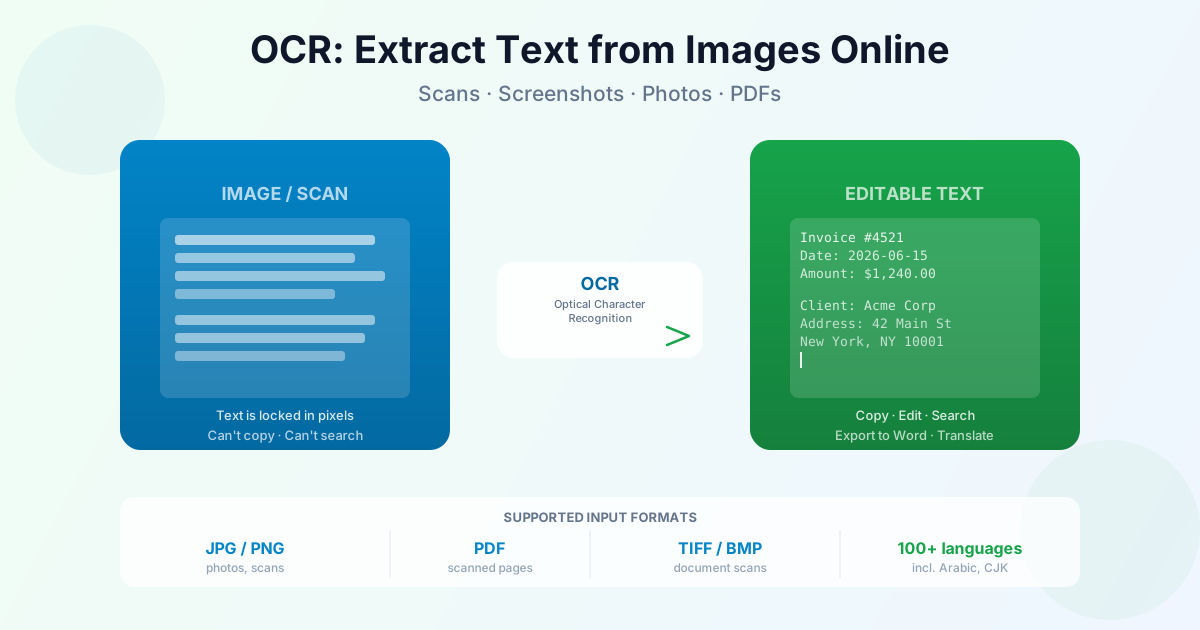
To translate text from an image, you need two steps: get the text out of the picture with OCR, then run that text through a translator. For a quick look at a sign or a menu, a camera translator (Google Translate, Google Lens, iPhone Live Text) does both at once. For a whole page you want to keep, edit or double-check, extract the text first with image to text OCR, copy it and paste it into Google Translate or DeepL — you get the full original text next to the translation, not just an overlay.
How to Translate Text from an Image in 3 Steps
- Extract the text. Upload the photo to JPG to TXT or the screenshot to PNG to TXT. In the document language menu, pick the language the image is written in — the source language, not the one you want to read
- Copy the text. Open the downloaded .txt file, select all and copy
- Translate it. Paste into Google Translate, DeepL or any translator and pick your target language
That's it. OCR doesn't translate anything itself — it turns the picture into real characters, and those characters are what a translator needs. Several images? Drop them on the page together: each one gets its own text file, and Download all as ZIP collects them.
One tip that improves translations a lot: the text file has one line per printed line, so a sentence that wrapped across two lines arrives split in two. Join the lines of each paragraph before you paste (in Word, replace the line breaks inside a paragraph with spaces). Translators work sentence by sentence and do better with whole sentences.
Which Image Languages You Can Translate This Way
The OCR tools list 29 document languages. If the image is in one of these, the three-step route works:
| Script | Languages |
|---|---|
| Latin | English, German, French, Spanish, Italian, Portuguese, Dutch, Polish, Czech, Hungarian, Romanian, Turkish, Vietnamese, Indonesian, Swedish, Danish, Norwegian, Finnish |
| Cyrillic | Russian, Ukrainian |
| Greek | Greek |
| Arabic script | Arabic, Persian |
| Devanagari | Hindi |
| East and Southeast Asian | Japanese, Korean, Thai, Chinese (Simplified), Chinese (Traditional) |
Languages that aren't on the list — Hebrew, Bengali or Tamil, for example — won't come out as usable text. For those, a camera translator (below) is the practical option.
Why the Source Language Matters
The language menu decides which recognition model reads the image. On Automatic, the script is recognised — Latin, Cyrillic, Greek, Arabic, Devanagari, Thai, Korean, Chinese or Japanese — and the matching model reads the text. Picking the source language yourself is still the safest choice when you know it, and two cases need it:
- Traditional Chinese: Automatic reads it with the Simplified model; choose Chinese (Traditional) for the best result
- A line in another script — say, English dish names on a Russian menu — is read with the model of the rest of the image; pick the main language, or crop that part into its own image
Paste wrong text into a translator and you get a wrong translation back, so glance over the extracted lines first. The instant "to text" pages that show the result on screen, like JPG to text, have the same language menu.
Translate Chinese, Japanese, Korean or Arabic Text from an Image
These are the languages people most often want translated from a picture, and all four are on the list:
- Chinese: pick Simplified for text from mainland China and Singapore, Traditional for Taiwan and Hong Kong. Each option reads its own character set, so match it to the image
- Japanese: pick Japanese, whatever the mix of kanji and kana
- Korean: pick Korean for hangul text
- Arabic and Persian: pick the language, and the text comes out right to left in reading order, ready to paste into a translator
Horizontal text in a clear print font gives the best results in every script. Stylised headings on packaging and menus are harder than body text, so glance over the extracted lines before relying on the translation.
Google Translate Image to Text
Google Translate can read and translate images directly:
- On a computer: open translate.google.com, choose the Images tab, upload a JPG or PNG, and the translation appears over the image. You can copy the translated text from there
- On a phone: open the Google Translate app, tap Camera, and point it at the text for a live overlay — or import a photo you took earlier
- With Google Lens: open Lens (or Lens in Google Photos), tap Translate, and the translation replaces the text on the picture
This is the fastest way to understand a sign, a label or a menu. The trade-off: you see the translation, but the original text isn't handed to you as a clean, editable block, and longer pages are awkward to read as an overlay.
How to Translate Text from an Image on iPhone
iPhones with iOS 15 or later can do it without any extra app:
- Open the photo in Photos and tap the Live Text icon in the corner
- Select the text you want
- Tap Translate in the pop-up menu
The Apple Translate app also has a Camera mode that translates what the camera sees. Both are good for a few lines; for a full page, the OCR-then-translate route gives you a text you can keep.
Translate a Scanned Document, Not Just a Photo
For a multi-page scan — a letter, a contract, a certificate — translating page photos one by one is slow. A better route:
- Run the scanned PDF through OCR PDF to Word with the document language set. You get a DOCX where headings keep heading styles and lists stay lists
- Upload that DOCX to the Documents tab of Google Translate, or to DeepL's document translation
- Download the translated document with its structure intact
If the translator you use prefers PDF, make a searchable PDF first — the OCR text layer is what lets the translator find the words. Photos of pages go the same way through JPG to Word. Not sure which output to pick? Our comparison of OCR output formats explains when TXT, Word or a searchable PDF fits best.
Check the Translation Before You Rely on It
- Numbers, dates and prices — compare them with the photo; OCR can swap 0/O or 1/l, and a translator won't notice
- Names and addresses — translators sometimes "translate" a surname or a street name
- Official documents — for anything you'll submit to an authority, use the machine translation to understand the text and a certified translator for the final version
Summary
Translating text from an image is OCR plus a translator. For a quick glance, use Google Translate's camera, Lens or iPhone Live Text. For a page you want to keep or check, upload it to JPG to TXT, pick the language the image is written in, copy the text and paste it into your translator. For extracting text from pictures in general — on Windows, Mac or Android — see our guide on how to extract text from an image.
Related Tools
- JPG to TXT — text from a photo, with 29 document languages
- PNG to TXT — text from a screenshot, with the same language menu
- OCR PDF to Word — scanned PDF to an editable DOCX for document translation
- OCR PDF to searchable PDF — add a text layer a translator can read
- JPG to Word — photo of a page to DOCX