You need to edit a PDF online, but the document feels locked. Maybe it is a contract that needs a signature, a report with an outdated paragraph, or a form that should have been fillable but is not. The good news: most PDF edits are straightforward once you know which tool to reach for.
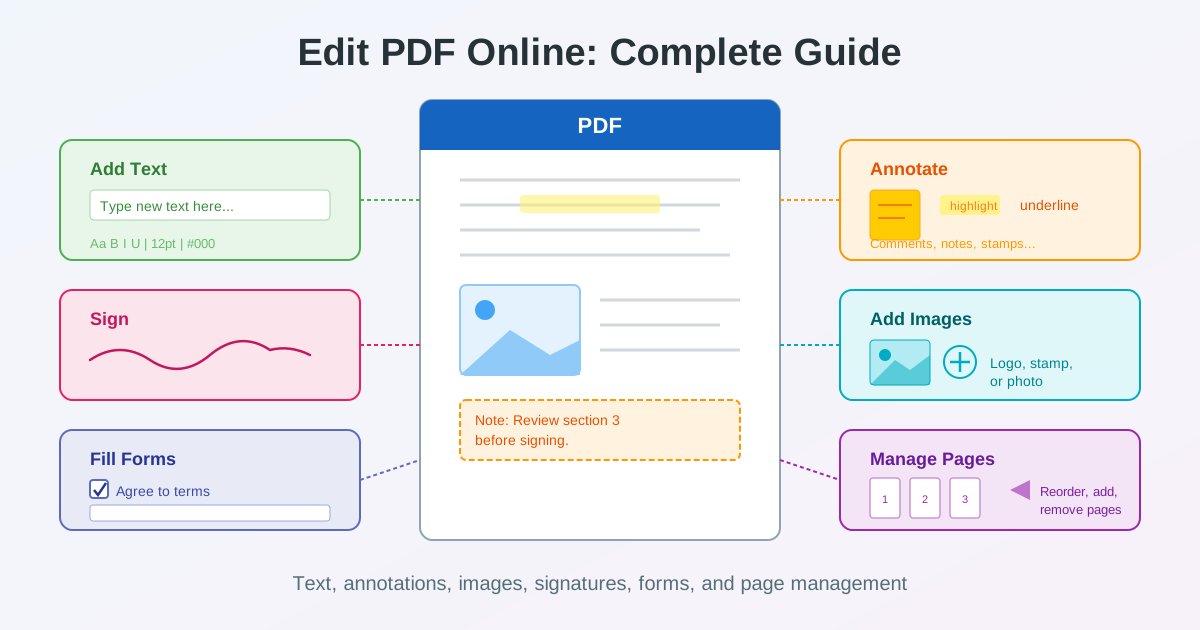
This guide covers everything you can do with a PDF editor — adding text, inserting images, annotating, signing, filling forms, and managing pages — along with the honest limitations of PDF editing and when converting to Word is the smarter path.
What You Can Edit in a PDF
A PDF was designed to be a final, portable document — not an editable workspace. That said, modern online PDF editors support a wide range of modifications. Understanding the boundary between what works well and what does not will save you time and frustration.
Adding and overlaying text
The most common PDF edit is adding new text. Online editors let you place text boxes anywhere on the page. You can choose the font, size, color, and alignment. This works perfectly for adding a missing date, a reference number, a short comment, or filling in blank areas.
The key distinction: you are adding text on top of the existing content, not modifying the original text stream. The original characters beneath remain unchanged.
For quick text additions, open the PDF editor and use the text tool to place your content exactly where it belongs. Adjust the font to match the document style, and the addition blends seamlessly with the original.
Inserting images, logos, and stamps
Need to add a company logo, a photo, an approval stamp, or a watermark? Upload the image and position it on any page. Most editors support PNG, JPG, and SVG formats. Resize and rotate the image to fit the layout. This is useful for branding documents, adding visual evidence to reports, or placing certification stamps on official papers.
Annotations: highlights, notes, and comments
Annotations are the review layer of PDF editing. Highlight important passages in yellow (or any color). Add sticky notes with comments. Underline or strikethrough text. Draw freehand marks with a pen tool. When you annotate PDF online, these annotations live as a separate layer — the original document content stays untouched, which is exactly what you want during a review cycle. Colleagues can see your feedback without the risk of accidentally altering the source material.
Signatures and initials
Signing a PDF online is one of the most requested editing tasks. You have three options:
draw your signature using a mouse or touchscreen, type your name and apply a script font, or upload a scanned image of your handwritten signature. Position the signature on the designated line, and the signed PDF is ready to share. For multi-party documents, each signer can add their signature to the same file sequentially.
Form filling
PDFs with interactive form fields (AcroForms) let you click into text boxes, check boxes, select dropdown options, and enter data directly. If the PDF looks like a form but lacks interactive fields — a common situation with older documents — you can still fill it by placing text boxes precisely over the blank spaces. The result looks identical to a natively filled form.
Managing Pages: Add, Remove, Reorder
PDF editing is not limited to content on a single page. You often need to restructure the entire document. Here is how page-level operations work.
Adding pages from another PDF
Use the PDF merge tool to combine two or more PDFs into a single file. Upload the documents in the order you want, and the merged result preserves the formatting of each source. This is essential for assembling reports from multiple authors, appending cover letters to applications, or adding an appendix to an existing document.
Removing and extracting pages
The PDF split tool lets you extract specific pages or remove unwanted ones. Need only pages 3 through 7 of a 20-page document? Split it. Want to remove the cover page? Extract everything except page 1.
Splitting is non-destructive — the original file stays intact while you get a new PDF containing only the pages you selected.
Reordering pages
To rearrange page order, split the document into individual pages or sections, then merge them back in the desired sequence. While this is a two-step process, it gives you full control over the final page arrangement without any quality loss.
What You Cannot Edit in a PDF (Realistically)
Honesty saves time. Here are the PDF editing limitations you should know before you start.
Rewriting existing text
A PDF stores text as positioned character sequences, not flowing paragraphs. You cannot click on a sentence and retype it the way you would in Microsoft Word. Deleting a word in the middle of a paragraph does not cause the surrounding text to reflow. If you need to rewrite, restructure, or significantly modify existing text, converting to Word is the correct approach.
Complex layout changes
Changing column layouts, adjusting margins, moving text blocks relative to each other, resizing tables, or altering headers and footers are operations a PDF editor cannot handle reliably. These require reflowing the entire document, which is a word processor task. Convert to DOCX, make the layout changes in Word, and export back to PDF.
Editing embedded fonts and styles
PDFs embed font subsets — only the characters used in the document. You cannot change the font of existing text or apply bold/italic formatting to text that was not originally styled that way. New text you add can use any font available in the editor, but the original text retains its embedded styling.
When to Convert to Word Instead
Knowing when to stop trying to edit a PDF directly and switch to a Word workflow is the most valuable skill in document editing. Here is the decision framework.
Stay in PDF when you need to: add a signature, fill form fields, annotate for review, add a stamp or logo, insert a short text note, or manage pages (merge, split, reorder). These operations preserve the original layout perfectly.
Convert to Word when you need to: rewrite paragraphs, change formatting or fonts, restructure sections, update tables, adjust margins or columns, or make more than a handful of text changes. The PDF to Word converter extracts text, images, and formatting into an editable DOCX file. Make your changes in any word processor, then save back to PDF if needed.
Step-by-Step: Edit a PDF Online
Here is the practical workflow for the most common PDF editing tasks, all done in a browser without installing software.
1. Add text to a PDF
- Open the online PDF editor .
- Upload your PDF file.
- Select the text tool from the toolbar.
- Click where you want to place the text and start typing.
- Adjust font, size, and color to match the document style.
- Download the updated PDF.
2. Annotate a PDF for review
- Upload the PDF to the editor.
- Use the highlight tool to mark important sections.
- Add sticky notes with your comments on specific areas.
- Use strikethrough for text that should be removed.
- Share the annotated PDF with your team.
3. Sign a PDF document
- Open the PDF in the editor.
- Select the signature tool.
- Draw, type, or upload your signature.
- Position it on the signature line and resize if needed.
- Download the signed document.
4. Fill a PDF form
- Upload the form PDF.
- Click on interactive form fields and enter your data.
- For non-interactive forms, use the text tool to place text over blank areas.
- Check any required checkboxes.
- Download the completed form.
Working with Scanned PDFs
Scanned PDFs are image-based — the text you see is actually a picture. This means you cannot select, search, or modify the text directly. However, you can still add new content on top: text boxes, annotations, signatures, and images all work on scanned PDFs the same way they work on digital ones.
If you need to edit the actual content of a scanned PDF, the workflow requires an extra step: run OCR (Optical Character Recognition) to convert the scan into selectable text, then convert to Word for editing. This two-step approach — OCR first, then PDF to Word conversion — gives you a fully editable document from a paper scan.
After Editing: Compress Your PDF
Adding images, stamps, or annotations increases the PDF file size. If you need to email the edited document or upload it to a portal with size limits, run it through a PDF compression tool after editing. Compression reduces file size by optimizing embedded images and removing redundant data, typically cutting much of the bloat without visible quality loss.
Tips for Better PDF Editing Results
- Match fonts carefully. When adding text, choose a font that closely matches the original document. Arial, Helvetica, and Times New Roman cover most business documents. Mismatched fonts make additions obvious.
- Use consistent colors. Sample the color of existing text (usually black or dark gray) and use the same shade for your additions.
- Work on a copy. Always edit a copy of the original PDF. If something goes wrong, you still have the unmodified source.
- Check the result at 100% zoom. Edits that look fine zoomed out may have alignment issues at actual size. Verify before sharing.
- Flatten annotations before sharing. If you do not want recipients to modify or delete your annotations, flatten them into the document. This converts the annotation layer into permanent page content.
- Compress after editing. If you added images or stamps, the file size may have increased. A quick compression pass keeps the document portable.
PDF Editing vs. PDF Conversion: Quick Reference
| Task | Edit PDF Directly | Convert to Word |
|---|---|---|
| Add signature | Best option | Unnecessary |
| Fill form fields | Best option | Unnecessary |
| Add annotations/comments | Best option | Not applicable |
| Insert logo or stamp | Best option | Unnecessary |
| Add a short text note | Good option | Not needed |
| Rewrite paragraphs | Not possible | Best option |
| Change fonts/formatting | Not possible | Best option |
| Restructure sections | Not possible | Best option |
| Update tables | Not possible | Best option |
| Merge multiple PDFs | Use merge tool | Not applicable |
| Remove pages | Use split tool | Not applicable |