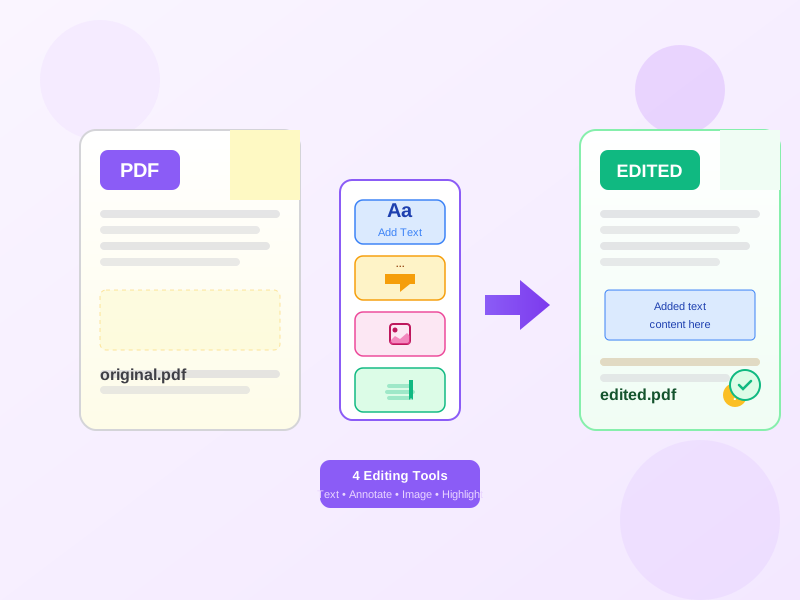
Need to edit a PDF — make a quick correction, change a word, add a date, sign it or highlight a clause? Open Edit PDF, upload the file, make the change and download the updated PDF. There's nothing to install: the editor opens in any web browser, and your edits are written into the file on our servers when you download it.
This guide covers the everyday edits — changing existing text, adding text boxes, images and signatures, highlighting — for both digital PDFs and scanned ones that need OCR first. For bigger rewrites, convert to Word instead (see below).
How to edit a PDF online in 3 steps
- Open Edit PDF and upload your PDF.
- Pick a tool: Edit Text to change a line that's already there, Add Text, Insert Image, Add Signature, the pencil or highlighter, or Redact.
- Place your edits, adjust size and color, then click Apply & Download to get the updated PDF.
When to edit PDF vs. convert to Word
- Edit PDF directly — best for minor additions like signatures, stamps, comments, or filling form fields while keeping the original layout locked.
- Convert to Word first — best for rewriting paragraphs, reflowing text, changing formatting, or restructuring sections. Use PDF to Word for this workflow.
Common PDF editing tasks
1) Change text that's already in the PDF
- Click Edit Text, then click the line you want to change.
- Type the correction. The original words in that area are removed and your text goes in their place.
- Keep it short: the rest of the paragraph doesn't reflow, so a much longer line will overlap its neighbours.
2) Add text boxes
- Click "Add Text" and position the box where needed.
- Set the size, color, and bold, italic, or underline to match the existing document style.
- Use for filling forms, adding dates, or inserting clarifications.
3) Mark up pages by hand
- Use the pencil to circle, underline, or jot a note in the margin.
- Pick the stroke color and width, and undo the last stroke if it goes wrong.
- Great for review feedback on contracts and drafts.
4) Place images and logos
- Upload PNG or JPEG images (signatures, stamps, logos).
- Resize and position with drag handles.
- Use transparent PNGs for professional-looking overlays.
5) Highlight text
- Switch to the highlighter and drag it over the lines you want to mark.
- Useful for marking important clauses or changes.
- Works on scans too, because you draw over the page instead of selecting text.
Editing scanned PDFs (image-based)
Scanned PDFs are just images of pages — you cannot select or search text. To edit these:
- Run OCR: PDF to searchable PDF first.
- This adds a text layer without changing the visual appearance.
- Now you can highlight, search, and copy text.
- For major edits, use OCR: PDF to DOC to get an editable Word document.
Step-by-step: fill and sign a form
- Open Edit PDF and upload the form.
- If the form has fillable fields, click a field on the page and type; tick boxes and pick dropdown values the same way. On a flat form, click "Add Text" and place boxes over the blanks.
- Type your information (name, date, address, etc.).
- Click Add Signature and draw it with your mouse or finger, or upload a PNG of your signature with a transparent background.
- Position and resize the signature in the signature line.
- Download the completed, signed form as PDF.
Best practices for clean edits
Match the original style
- Use the same size and weight as the existing text.
- Match colors: black for body text, blue for hyperlinks.
- Keep consistent line spacing and alignment.
Place elements carefully
- Zoom in before positioning small text boxes next to existing lines.
- Select an element to move or delete it — nothing is written into the PDF until you apply the edits.
- Work page by page so nothing lands on the wrong page.
Save incremental versions
- Download after each major change (e.g., "contract_v1_signed.pdf").
- Keep originals unmodified in case you need to start over.
Troubleshooting common issues
Cannot select text in PDF
- The PDF is likely a scan. Run OCR first to add a text layer.
- Use OCR: PDF to searchable PDF.
Added text doesn't match the document font
- New text boxes have no font picker, so match the size, color, and weight instead.
- To change wording that is already on the page, use Edit Text on that line rather than covering it with a new box.
Edits look misaligned when printed
- Ensure you're viewing at 100% zoom when positioning elements.
- Print a test page to verify alignment before finalizing.
- Use PDF page margins as guides for text box placement.
Related workflows
- Sign, fill and annotate a PDF — step-by-step tutorials for each editing task
- PDF to Word — for major text edits and reformatting
- OCR: PDF to DOC — turn scanned documents into editable text
- Compress PDF — reduce file size after adding images
- Word to PDF — create new PDFs from edited Word documents