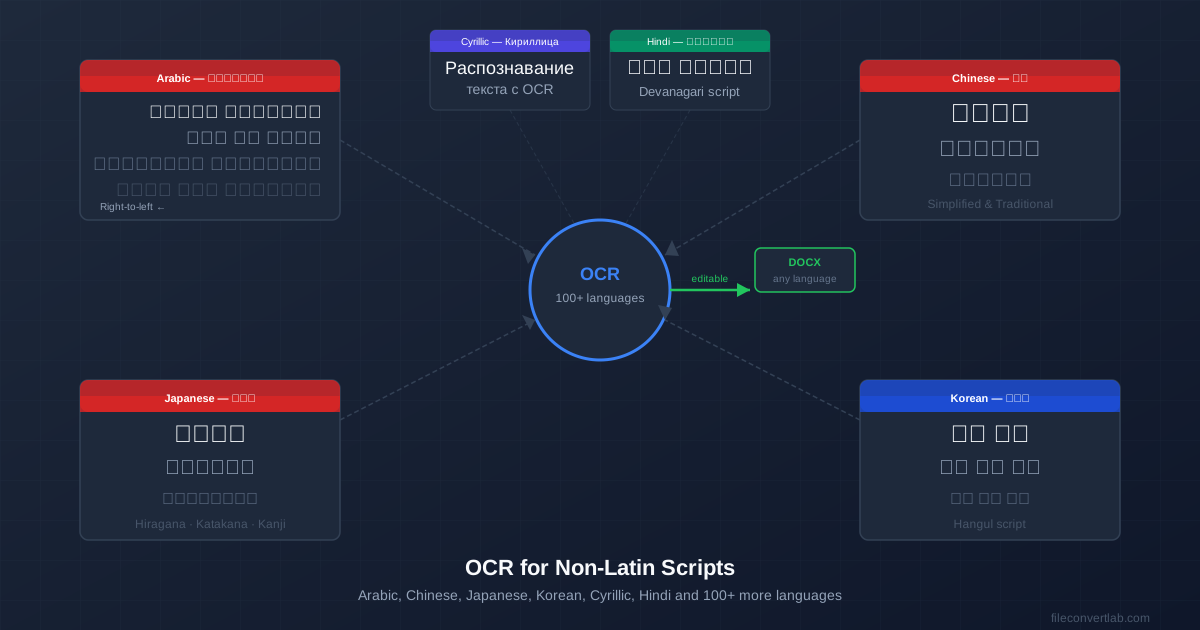
OCR is not limited to English. Modern OCR engines support 29 languages including Arabic, Chinese, Japanese, Korean, Russian, and Hindi — writing systems that look nothing like the Latin alphabet. The process works the same way as for any other document, with one critical difference: language selection matters enormously.
This guide covers what to expect when running OCR on non-Latin documents, the specific requirements for each major script, and why getting the language setting right is the difference between useful output and gibberish.
Why Language Selection Is Critical for Non-Latin OCR
When OCR processes a character, it often faces ambiguous cases — a blurry stroke that could match multiple characters. For Latin text, the engine resolves this using English word patterns: a sequence that spells a real English word is preferred.
For Arabic, the engine needs to know that characters connect differently depending on their position in a word. For Chinese, it needs to distinguish among thousands of characters that differ by small stroke details. For Japanese, it needs to simultaneously handle three different writing systems in the same sentence.
Setting the wrong language doesn't just reduce accuracy — it can produce output that's completely unreadable, because the engine applies the wrong character model entirely. Select the correct language before running OCR on a non-Latin document, or leave our tools on Automatic, which picks the recognition model from the script it finds on each page.
To convert a non-Latin scanned document, use our image to Word converter or OCR PDF to Word tool , both of which support 29 languages.
Arabic OCR
Arabic OCR handles a cursive script where letters change shape based on their position in a word (isolated, initial, medial, final forms). The engine recognizes these contextual forms automatically when Arabic is selected.
- Expected accuracy: Not measured by us for Arabic; clean printed Arabic at 300 DPI gives the best results. Handwritten Arabic is much harder and often unreliable.
- Right-to-left output: Arabic text flows right-to-left. The output Word document should have RTL paragraph direction. If text appears left-to-right, select all text in Word and set paragraph direction to right-to-left.
- Diacritics (tashkeel): Short vowel marks (harakat) on Arabic text are small and close to the base characters. At lower resolutions these merge and cause errors. Scan at 400+ DPI if your document has heavy diacritical marking.
- Arabic numerals vs. Eastern Arabic numerals: Arabic text can use either 1 2 3 (Western) or ١ ٢ ٣ (Eastern Arabic/Hindi numerals). Modern OCR handles both, but check number output carefully.
Chinese OCR
Chinese uses logographic characters — each character represents a morpheme rather than a sound. Modern OCR engines know thousands of characters and distinguish between similar-looking ones by stroke detail.
- Simplified vs. Traditional: These are different character sets. Simplified Chinese is used in mainland China and Singapore; Traditional Chinese in Taiwan, Hong Kong, and Macau. Select the correct variant — using the wrong one produces wrong characters, not garbled text.
- Expected accuracy: Not measured by us for Chinese; clean printed text at 300 DPI gives the best results. Higher resolution (400 DPI) helps with small characters or dense text.
- Mixed Chinese-English documents: Common in business documents. Select Chinese as the primary language — modern engines handle embedded Latin text correctly in Chinese-language documents.
- Vertical text: Some traditional Chinese documents use vertical layout (top-to-bottom columns). Check if your OCR tool explicitly supports vertical Chinese; not all do.
Japanese OCR
Japanese is uniquely challenging because a single sentence typically mixes three writing systems: Hiragana (phonetic syllabary), Katakana (phonetic syllabary for foreign words), and Kanji (Chinese-derived logographs). OCR handles all three simultaneously when Japanese is selected.
- Expected accuracy: Not measured by us for Japanese; clean printed text gives the best results. Kanji accuracy is slightly lower than Hiragana/Katakana due to more complex character shapes.
- Vertical text (tategumi): Japanese documents — especially books, newspapers, and formal documents — often use vertical text layout read top-to-bottom, right-to-left. This requires explicit vertical Japanese OCR support. Horizontal layout (yokogumi) works with any Japanese-capable OCR engine.
- Furigana: Small Hiragana above Kanji (pronunciation guides) are very small and often misread or dropped at standard 300 DPI. At 600 DPI, furigana OCR accuracy improves significantly.
- Romaji mixed in: Japanese documents often include Latin letters (product names, technical terms). These are handled correctly by Japanese-language OCR without any extra settings.
Korean OCR
Korean uses Hangul — a featural alphabet where each syllabic block is composed of phoneme components (jamo) arranged in a square block. OCR recognizes the composite blocks rather than individual jamo.
- Expected accuracy: Not measured by us for Korean; clean printed Korean at 300 DPI gives the best results.
- Hanja: Korean historical and formal documents sometimes include Hanja (Chinese characters). Select Korean language — the engine handles embedded Hanja in Korean context.
- North vs. South Korean: Orthography differs slightly. For most practical purposes, "Korean" OCR works for both, but documents using North Korean-specific vocabulary may show slightly different results.
Cyrillic Scripts (Russian, Ukrainian, etc.)
Cyrillic OCR is among the most accurate of the non-Latin scripts — comparable to Latin in terms of accuracy and reliability. The alphabet has 33 characters in Russian (slightly more or fewer in other Cyrillic-script languages), making it simpler than Chinese or Japanese.
- Expected accuracy: In our test on 10 pages of real scanned Russian documents, the character error rate was 5.6% for a contract and 7.6% for a bank statement with tables (about 92–94 characters in 100 right).
- Select the specific language, not just "Cyrillic": Russian, Ukrainian, Bulgarian, Serbian, Macedonian, and Mongolian all use Cyrillic with different letter sets and spelling patterns. Selecting the specific language gives better disambiguation on ambiguous characters.
- Pre-reform Russian orthography: Historical Russian documents (pre-1918) use characters like Ѣ (yat) that were dropped in the Soviet spelling reform. Most OCR engines don't handle these — specialized historical document OCR tools are needed.
Hindi and Devanagari
Devanagari is used for Hindi, Sanskrit, Marathi, Nepali, and related languages. It features a distinctive horizontal bar connecting letters at the top (shirorēkhā) and complex conjunct consonants where multiple consonants merge into a single glyph.
- Expected accuracy: Not measured by us for Devanagari; expect somewhat more errors than with Latin and Cyrillic due to conjunct complexity.
- Scan quality matters more: The horizontal bar and conjunct glyphs require clear strokes. Scans below 200 DPI cause significant accuracy loss.
- Select specific language: Hindi, Marathi, and Nepali use the same Devanagari script but different vocabulary and letter frequency patterns. Select the specific language for best results.
General Tips for Non-Latin OCR
- Scan at 300–400 DPI. Non-Latin scripts generally benefit from higher resolution than Latin text because characters have finer stroke details. 400 DPI is worth the larger file size for scripts like Japanese, Chinese, and Devanagari.
- Use grayscale, not color, for text-only documents. Color scans of text documents are larger without accuracy benefit. Grayscale at 300–400 DPI is the standard.
- Check document orientation before uploading. A page rotated 90° will produce garbled output in any language. Ensure all pages are correctly oriented in the PDF before running OCR.
- Verify output in the correct encoding. The output Word document should display the characters correctly on your system. If you see boxes or question marks instead of characters, the font may not support the script — switch to a font that does (Noto Sans covers most scripts).
For multi-page non-Latin documents, the same workflow applies as for any multi-page PDF — see our guide on OCR for multi-page PDFs . On Automatic, our tools detect the language page by page, so a document whose pages are in different languages — an English cover followed by Russian pages — is read correctly without splitting. A language you choose in the menu applies to every page; on a page that mixes scripts, choose that page's main language or keep the other-script part on its own page.