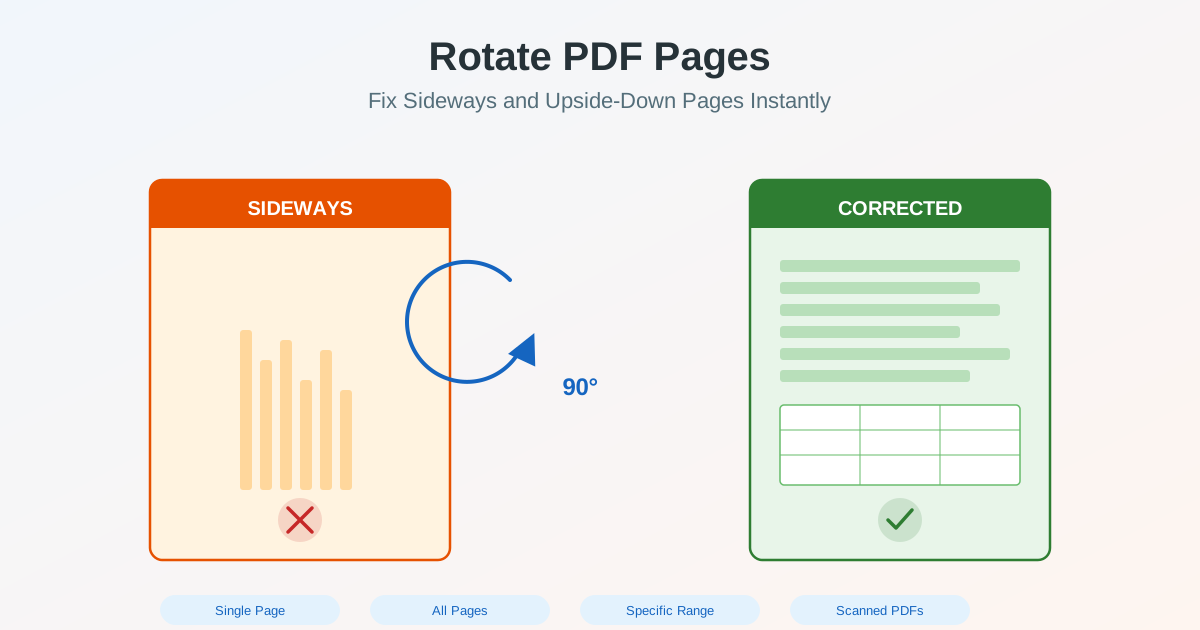
You open a PDF and half the pages are sideways. Or someone sends you a scanned document where every page is upside down. Maybe a landscape table appears rotated 90 degrees in an otherwise portrait document. These orientation problems are among the most common issues people encounter with PDF files — and they are easy to fix once you know how to rotate PDF pages correctly.
This guide covers every rotation scenario: fixing a single sideways page, rotating an entire document, correcting specific page ranges, handling scanned PDFs, and saving the result permanently. Whether you need to turn a PDF sideways, flip a page upside down, or rotate PDF 90 degrees, the process is straightforward.
Why PDF Pages End Up Sideways or Upside Down
Understanding why orientation problems happen helps you prevent them in the future and choose the right fix for your situation.
Scanning Orientation Mismatch
The most common cause of sideways PDF pages is scanning. When you place a landscape document — a wide spreadsheet, certificate, or architectural drawing — into a portrait-oriented scanner tray, the scanner captures it rotated 90 degrees. Automatic document feeders are especially problematic because they process pages quickly without checking content orientation. The result: a scanned PDF with some or all pages sideways.
Mixed Page Orientations in One Document
Reports and proposals frequently mix portrait text pages with landscape tables, charts, or wide diagrams. When these documents are saved or exported to PDF, the orientation of each page is preserved. This is correct behavior — but if you later scan or re-export the document, pages can lose their intended orientation. The same problem occurs when merging PDFs from different sources where page orientations do not match.
Mobile Scanning and Photos
Phone cameras and scanning apps create PDFs from photos, and the orientation depends on how you held the phone. If the phone was tilted or the auto-rotation sensor misread the position, the resulting PDF pages may be rotated. This is common with documents captured quickly in meetings, at counters, or in poor lighting conditions.
Software Export Errors
Some applications set page rotation incorrectly during PDF export. CAD software, legacy publishing tools, and certain print drivers can produce PDFs where the content appears rotated even though the source document was correct. In these cases, the PDF viewer faithfully displays what the software wrote — which happens to be wrong.
How to Rotate PDF Pages: Step by Step
The process for fixing PDF page orientation is the same regardless of why the pages are rotated. Here is how to rotate PDF pages online and save the corrected file.
Rotate All Pages in a PDF
When the entire document has the wrong orientation — every page is sideways or upside down — rotating all pages at once is the fastest approach.
- Open the PDF Rotate and Reorder tool
- Upload your PDF file
- Select all pages (or use the “select all” option)
- Choose the rotation angle: 90° clockwise, 90° counterclockwise, or 180°
- Preview the result to confirm pages are correctly oriented
- Save and download the rotated PDF The entire process takes seconds. The rotated file preserves all content — text, images, links, bookmarks, and form fields remain intact. Only the page orientation changes.
Rotate a Single Page in a PDF
If only one page is oriented incorrectly — a common scenario when a landscape table appears in a portrait document — you can rotate just that page without affecting the rest.
- Upload the PDF to the Rotate and Reorder tool
- Navigate to the page that needs rotation using the page thumbnails
- Click the rotation button on that specific page
- Choose the correct rotation direction (clockwise or counterclockwise)
- Verify the page now displays correctly in the preview
- Download the corrected PDF This is the most common rotation task — fixing that one landscape chart or table that appears sideways in an otherwise normal document.
Rotate Specific Pages or Ranges
For documents where multiple non-consecutive pages need rotation — say pages 3, 7, and 12-15 in a 20-page report — you can select specific pages or page ranges.
- Upload the PDF and view all page thumbnails
- Select the pages that need rotation (click individual pages or specify a range)
- Apply the rotation angle to the selected pages
- Review the full document to confirm the corrections
- Save the result This approach is essential for long documents where only certain sections — appendices, wide tables, or inserted diagrams — have orientation problems.
Rotation Angles: Which Direction to Choose
Choosing the wrong rotation direction means you turn a sideways page into an upside-down page instead of fixing it. Here is how to pick the right angle every time.
90 Degrees Clockwise
Use this when the page content is rotated counterclockwise — the text reads from bottom to top on the left side of the page. Rotating 90° clockwise brings the content back to normal reading orientation. This is the most common fix for pages scanned sideways with the top of the document facing left.
90 Degrees Counterclockwise
Use this when the page content is rotated clockwise — the text reads from top to bottom on the right side of the page. This fix is for pages scanned sideways with the top of the document facing right. If you rotate and the result is upside down, you chose the wrong direction — simply rotate 180° more or undo and try the other direction.
180 Degrees
Use this when pages are completely upside down — the text reads correctly left to right but from the bottom of the page upward. This happens when documents are scanned face-down or when a double-sided scan flips alternating pages. A 180-degree rotation flips the page to the correct orientation regardless of whether you go clockwise or counterclockwise.
Common Scenarios and How to Fix Them
Different situations call for different rotation strategies. Here are the scenarios you are most likely to encounter.
Landscape Tables in a Portrait Document
Financial reports, research papers, and project plans often include wide tables that were formatted in landscape orientation. When the document is printed or scanned, these pages appear sideways in the PDF. To fix a sideways PDF table: select only the landscape pages, rotate them 90 degrees in the appropriate direction, and save. The table content remains readable and intact — only the page orientation changes.
If you actually need to extract the table data rather than just view it, consider converting the PDF to an editable format after fixing the rotation.
Scanned Documents with Wrong Orientation
When you need to rotate a scanned PDF, the process is identical to rotating any other PDF.
The scan quality is preserved because rotation changes orientation metadata — it does not recompress or degrade the scanned images. For batch-scanned documents where every page is wrong, select all pages and apply a single rotation. For documents where the scanner alternated orientations (common with duplex scanning errors), you may need to select odd or even pages separately.
Upside-Down Pages from Duplex Scanning
Double-sided scanning sometimes produces PDFs where every other page is upside down. This happens when the scanner's duplex unit flips pages incorrectly. The fix: select all even-numbered pages (or odd, depending on which set is inverted), rotate them 180 degrees, and save. Your document is instantly readable without manually flipping through upside-down pages.
Phone-Scanned PDF with Mixed Orientations
Documents captured with a phone camera often have inconsistent page orientations. Page 1 might be correct, page 2 sideways, and page 3 upside down — depending on how you held the phone for each photo. Review the document page by page, rotate individual pages as needed, and save the corrected version. The page thumbnail view makes it easy to spot which pages need correction.
Merged PDF with Inconsistent Orientations
When you merge multiple PDFs from different sources, some pages may have different orientations. A contract in portrait combined with a floor plan in landscape creates a document that requires rotation fixes for the plan pages. After merging, open the combined PDF in the rotation tool and correct any misaligned pages before distributing the final document.
Temporary View Rotation vs Permanent File Rotation
One of the most common frustrations people experience is rotating a PDF in their reader only to find the pages are sideways again the next time they open the file. This happens because most PDF viewers offer temporary view rotation — not permanent file modification.
View Rotation (Temporary)
PDF readers like Adobe Acrobat Reader, Chrome's built-in viewer, and Preview on Mac offer a “Rotate View” option. This changes what you see on screen but does not modify the PDF file. When you close and reopen the file, pages revert to their original orientation. View rotation is useful for quick reading but does not solve the underlying problem.
File Rotation (Permanent)
To permanently rotate PDF pages and save the corrected orientation, you need a tool that modifies the PDF file itself. The PDF Rotate and Reorder tool writes the rotation into the file structure, so every application that opens the PDF will display the pages in the corrected orientation. This is the only way to rotate a PDF and save the result permanently.
The distinction matters especially when you need to share the PDF with others. If you only rotated the view on your computer, recipients still see the sideways or upside-down pages. Permanent file rotation ensures everyone sees the document correctly.
Rotating PDF Pages and Reordering Together
Often, rotation is just one part of organizing a PDF. You might also need to reorder pages, remove blank pages, or rearrange sections. These tasks work naturally together.
After correcting page orientation, you can drag pages into the correct order, delete unnecessary pages, and save the reorganized document — all in a single operation. This is particularly useful when assembling a final document from scanned pages that arrived in the wrong order and orientation.
If you need to separate a rotated PDF into individual documents afterward, the PDF Split tool lets you extract specific pages or split by page ranges. For combining corrected pages with other documents, use the PDF Merge tool .
Tips for Avoiding Rotation Problems
Prevention is better than correction. These practices help you create properly oriented PDFs from the start.
- Match paper to scanner orientation: Place landscape pages sideways in the scanner tray so the scanner captures them in the correct reading direction
- Check auto-orientation settings: Many scanners have an auto-orient feature that detects text direction and rotates pages automatically. Enable this in scanner settings
- Lock phone orientation when scanning: Disable auto-rotate on your phone before using a scanning app to prevent inconsistent orientations
- Preview before saving: Always scroll through the complete PDF before saving or sharing to catch orientation issues early
- Use consistent export settings: When exporting from applications, use the same page size and orientation settings throughout the document
- Test duplex scanning: Before scanning a large batch double-sided, scan 2-3 pages first and verify both front and back are correctly oriented
When to Rotate vs When to Edit or Convert
Rotation fixes orientation. But sometimes you need more than just turning the page.
Here is how to decide which approach fits your situation.
- Just fix orientation: Use the Rotate and Reorder tool — fastest option, preserves everything
- Fix orientation and add annotations: Rotate first, then open in the PDF Editor to add text, highlights, or stamps
- Fix orientation and extract content: Rotate first, then convert to Word or Excel for editing — conversion works better on correctly oriented pages
- Fix orientation and restructure: Rotate, reorder, then split or merge as needed
A common workflow is: rotate and fix orientation first, then proceed with whatever you need to do with the document. Starting with correct orientation ensures every subsequent operation — OCR, conversion, editing — produces the best results.
Related Tools
- PDF Rotate and Reorder — Rotate pages, change order, and fix document organization
- PDF Editor — Add text, annotations, images, and highlights to corrected PDFs
- Split PDF — Extract specific pages or divide large PDFs into smaller files
- Merge PDF — Combine multiple PDFs into one document after fixing orientation
- PDF Converter — Convert corrected PDFs to Word, Excel, PowerPoint, and other formats
Conclusion
Fixing sideways, upside-down, or incorrectly oriented PDF pages is one of the simplest PDF operations — but only if you use the right tool. Rotating in a viewer is temporary and does not modify the file. To permanently fix orientation, use a dedicated PDF rotation tool that saves the corrected orientation into the file itself. Whether you need to rotate a single page, fix an entire scanned document, or correct specific page ranges, the process takes seconds and preserves all document content. Fix the orientation first, then proceed with editing, converting, or sharing — correctly oriented pages make every subsequent step easier and more accurate.