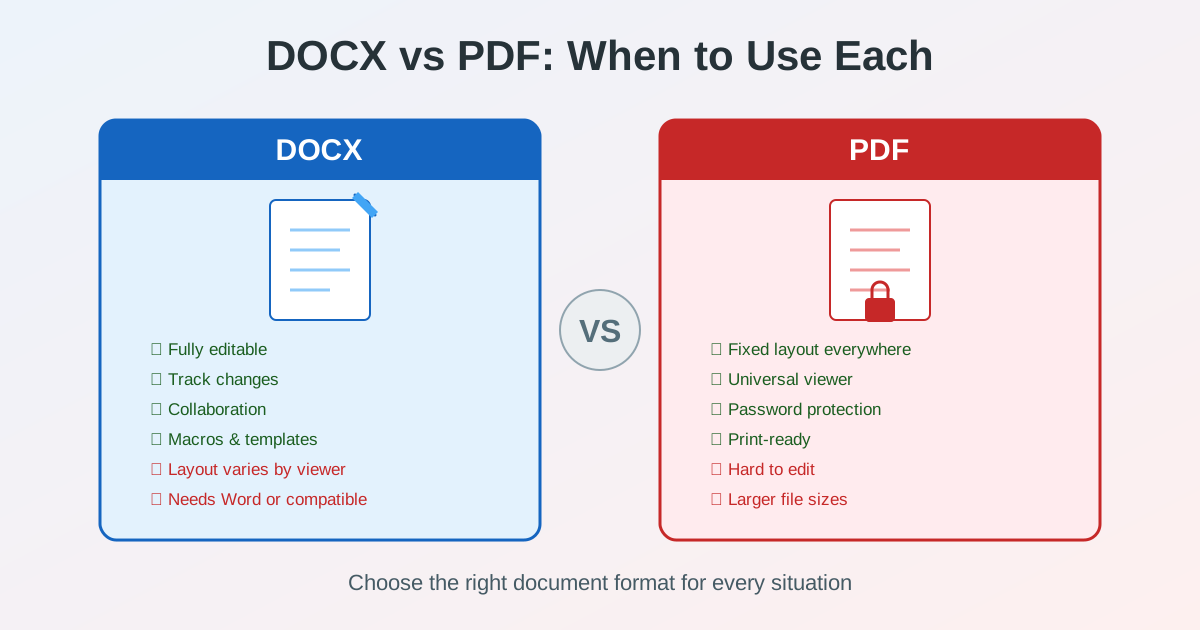
DOCX vs PDF comes down to one question: will anyone still edit this document? Use DOCX while the text is being written, reviewed or reused; use PDF once it's final and has to look the same on every screen and printer. Most documents go through both — drafted as DOCX, sent as PDF.
This guide compares the two formats on editing, layout, file size, security and archiving, and shows how to convert between them.
DOCX vs PDF: Quick Comparison
| Feature | DOCX | |
|---|---|---|
| Primary purpose | Editing & collaboration | Sharing & archiving |
| Layout consistency | Varies by viewer/fonts | Identical everywhere |
| Editability | Fully editable | Limited editing |
| File size (text-heavy) | Usually smaller (ZIP compressed) | Usually larger (embedded fonts) |
| Security options | Password, restrict editing | Password, print/copy/edit restrictions |
| Track Changes | Full support | Not available |
| Universal viewer | Needs Word or compatible app | Any browser or PDF reader |
| Print fidelity | Depends on printer driver | WYSIWYG — exact match |
What Is DOCX?
DOCX has been the default file format of Microsoft Word since Word 2007. The "X" stands for XML: the format is Office Open XML, standardized as ISO/IEC 29500. Under the hood, a DOCX file is a ZIP archive containing XML files that describe text, styles, images, and document structure.
Because DOCX is an open standard, it works across Microsoft Word, Google Docs, LibreOffice Writer, Apple Pages, and many other applications. The format is designed for creating and editing documents: writing reports, drafting proposals, collaborating with coworkers, and building templates. Learn more about the DOCX format and its conversion options.
What Is PDF?
PDF stands for Portable Document Format, created by Adobe in 1993 and standardized as ISO 32000. PDF was designed to present documents consistently regardless of software, hardware, or operating system. Every element — text, images, vector graphics, fonts — is embedded in the file itself.
PDF files open in any web browser, on any phone, on any computer. The layout never shifts. What you see is exactly what the author intended. This makes PDF the standard format for contracts, invoices, forms, published reports, and any document where visual accuracy matters. Explore all PDF conversion tools available.
DOCX vs PDF for Editing and Collaboration
This is the biggest difference between the two formats and usually the deciding factor.
DOCX: Built for Editing
- Full text editing: Add, delete, reformat any paragraph, heading, or table
- Track Changes: See who changed what, accept or reject edits, add comments
- Real-time collaboration: Multiple users editing simultaneously in Word Online or Google Docs
- Styles and templates: Consistent formatting with reusable style definitions
- Macros and automation: VBA macros for repetitive tasks
PDF: Limited Editing
- Annotations: Highlights, sticky notes, stamps, and text comments
- Form filling: Interactive PDF forms with fillable fields
- Minor text edits: Small corrections possible in PDF editors
- No Track Changes: Cannot track who edited what or revert changes
- Structural changes: Moving paragraphs, resizing images, or adding columns requires conversion to DOCX first
Bottom line: If you need to edit content or collaborate with others, use DOCX. If you need to annotate or fill forms, PDF works. For major edits to a PDF, convert it to Word format first.
Layout Consistency: Why PDF Looks the Same Everywhere
Layout consistency is where PDF dominates and DOCX struggles.
The DOCX Problem: Font and Version Differences
A DOCX file created in Word 2021 on Windows may look different when opened in LibreOffice on Linux or in Google Docs in a browser. The reasons include missing fonts (text reflows with substitute fonts), different rendering engines, and varying support for advanced features like SmartArt or complex tables.
Even between two copies of Microsoft Word, a document can look different if the recipient does not have the same fonts installed. Headers shift, columns break, table widths change. For internal drafts this is acceptable — for client-facing documents, it is not.
The PDF Advantage: What You See Is What They Get
A PDF normally embeds its fonts, images and layout instructions in the file, so the document looks identical on a Windows laptop, an iPhone or a Linux workstation. No font substitution, no reflowing text, no broken tables. This is why legal contracts, government forms, and published reports almost always use PDF.
DOCX vs PDF File Size
File size depends on content, but two patterns hold.
Text-Heavy Documents
A mostly-text DOCX is usually smaller than the same document exported to PDF. DOCX is a ZIP of XML and doesn't carry font data; the PDF embeds (subsets of) every font it uses.
Image-Heavy Documents
With many photos the gap can flip. Word keeps inserted pictures as they were inserted (unless you compress them), while many PDF exports downsample and recompress images. If a PDF is still too big to send, run it through PDF compression.
The only way to know for your file is to export it and compare — neither format is always smaller.
DOCX vs PDF: Security and Protection
Both formats offer security features, but PDF provides more granular control.
DOCX Security
- Password to open: AES-256 encryption prevents unauthorized access
- Restrict editing: Allow only comments, form filling, or tracked changes
- Mark as Final: Discourages (but does not prevent) editing
- Limitation: Edit restrictions can be removed with readily available tools
PDF Security
- Password to open: AES-256 encryption (same strength as DOCX)
- Permissions password: Separate password to restrict printing, copying, or editing
- Digital signatures: Cryptographic proof of authorship and document integrity
- Certification: Lock the document to prevent any further changes
- Redaction: Permanently remove sensitive information
Bottom line: PDF offers stronger document protection. For contracts, legal documents, and sensitive information, PDF with password protection and digital signatures is the industry standard.
DOCX vs PDF for Long-Term Archiving
If you need documents to be readable 10 or 20 years from now, format choice matters.
PDF/A: The Archival Standard
PDF/A is an ISO-standardized subset of PDF designed specifically for long-term archiving. It requires all fonts to be embedded, prohibits encryption, and disallows external dependencies. Libraries, governments, and corporations use PDF/A for records that must remain accessible for decades.
DOCX for Archives?
DOCX is an open standard (ISO/IEC 29500), so it will remain readable by future software. However, DOCX files depend on external fonts and may look different in future applications. There is no DOCX archival standard equivalent to PDF/A. For archival purposes, convert important DOCX documents to PDF first, then to PDF/A with the PDF to PDF/A converter — a regular Word-to-PDF export is not PDF/A.
When to Use PDF Instead of DOCX
Use PDF when the document is finished and appearance matters:
- Final reports and publications: Layout stays perfect on every screen
- Contracts and legal documents: Tamper-evident with digital signatures
- Invoices and receipts: Professional appearance, easy to print
- Resumes and portfolios: Your design remains intact
- Forms: Fillable PDF forms
- Print-ready materials: WYSIWYG — exactly what you see is what prints
- Email attachments: Recipients can open a PDF on practically any device
- Archiving: PDF/A is built for decades of readability
Need to convert your Word document to PDF? Use the Word to PDF converter.
When to Use DOCX Instead of PDF
Use DOCX when the document is still being worked on or will be modified:
- Drafts and work-in-progress: Easy to revise, restructure, and reformat
- Collaborative writing: Track Changes and comments for team review
- Templates: Reusable document structures for letters, memos, proposals
- Mail merge: Generate personalized documents from data sources
- Content creation: Blog posts, articles, manuscripts in progress
- Internal documents: Policies and procedures that get regular updates
- Data extraction: Easier to copy, search, and repurpose content
How to Convert Between DOCX and PDF
You do not have to choose one format permanently. Convert between DOCX and PDF depending on the stage of your document's lifecycle.
Word to PDF Conversion
Converting DOCX to PDF is straightforward and produces excellent results. Fonts get embedded, layout gets fixed, and the document becomes universally viewable. This is the most common conversion direction — you write in Word, then distribute as PDF.
- Fonts are embedded automatically — no missing font issues
- Tables, images, and headers transfer cleanly
- Hyperlinks remain clickable in the PDF
- File size typically increases (due to font embedding)
Use the DOCX to PDF converter to turn a finished Word file into a PDF.
PDF to Word Conversion
Converting PDF to DOCX is more challenging because PDF was not designed for editing. The converter must reconstruct paragraphs, detect columns, identify table structures, and match fonts. Simple documents with straightforward layouts convert well. Complex documents with multi-column layouts, overlapping elements, or unusual fonts may need manual cleanup.
- Text-based PDFs convert best — the text is already there
- Scanned PDFs need OCR (optical character recognition) first
- Simple tables usually come through as Word tables; complex ones need checking
- Headers and footers may need repositioning
Use the PDF to Word converter to get an editable DOCX from a text-based PDF. For a scan, use OCR PDF to Word instead.
Common Workflows
Here are typical real-world scenarios and which format to use at each step.
Writing a Report
- Draft in DOCX: Write, format, add tables and images
- Review in DOCX: Send to colleagues with Track Changes enabled
- Finalize in DOCX: Accept changes, clean up formatting
- Distribute as PDF: Convert to PDF for the final audience
Editing a Received PDF
- Convert PDF to DOCX: Use a PDF to Word tool
- Edit in Word: Make your changes, reformat as needed
- Convert back to PDF: Export the finished version as PDF
Building a Template Library
- Create templates in DOCX: Headers, styles, placeholders
- Fill in content in DOCX: Customize for each use
- Export each filled document as PDF: Consistent final output
DOCX or PDF by Use Case
| Use Case | Recommended Format | Why |
|---|---|---|
| Contract signing | Fixed layout, digital signatures, tamper-evident | |
| Team draft review | DOCX | Track Changes, comments, real-time collaboration |
| Resume / CV | Layout preserved, looks professional everywhere | |
| Invoice | Fixed layout, hard to alter, easy to print | |
| Meeting notes | DOCX | Quick edits, searchable, easy to update |
| Government form | Fillable fields, consistent layout, print-ready | |
| Book manuscript | DOCX | Track revisions, editor comments, flexible formatting |
| Archival / compliance | PDF/A | ISO standard for long-term preservation |
| Email attachment | Opens in any browser or PDF reader | |
| Internal policy document | DOCX | Regularly updated, version-controlled |
Tips for Working with DOCX and PDF
- Use web-safe fonts in DOCX: Arial, Times New Roman, and Calibri reduce cross-platform issues
- Check that fonts are embedded when exporting to PDF: prevents substitution on other systems
- Keep a DOCX master copy: Always retain the editable source file alongside the PDF
- Compress PDFs before emailing: Use PDF compression to reduce attachment size
- Check conversion results: After converting PDF to Word, review tables and images for accuracy
- Use PDF/A for records: When archiving documents that need to last decades
Related Tools
- PDF to Word Converter — Convert PDF to editable DOCX with layout preservation
- Word to PDF Converter — Convert DOCX to PDF with embedded fonts and formatting
- PDF Conversion Hub — All PDF conversion tools in one place
- PDF Editor — Add text, annotations, and highlights to PDF files
- DOCX Conversion Tools — Convert DOCX to other formats and back
- PDF Compressor — Reduce PDF file size for email and web
DOCX vs PDF: The Short Answer
DOCX and PDF are complementary formats, not competitors. Use DOCX when you are creating, editing, or collaborating on content. Use PDF when you are sharing, distributing, or archiving the finished result. Most documents go through both formats during their lifecycle: created as DOCX, distributed as PDF. When you need to edit a PDF, convert it to Word first. When your Word document is ready for the world, convert it to PDF.
Understanding when to use each format saves time, avoids formatting headaches, and ensures your documents look professional wherever they are opened.