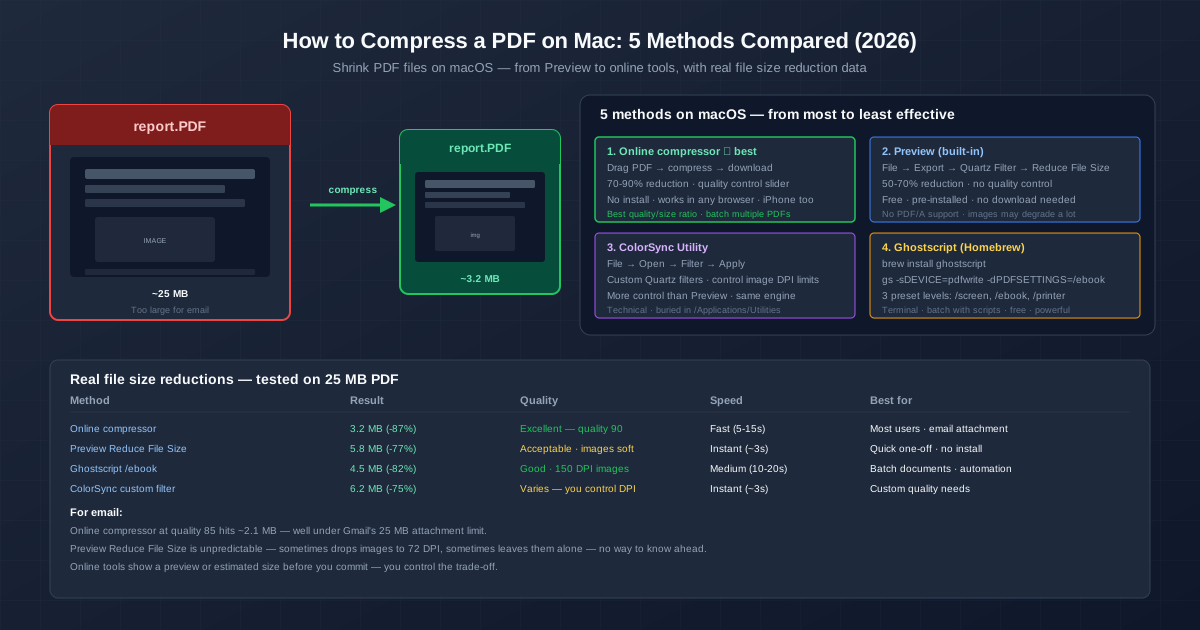
You have a PDF that is 25 MB, 50 MB, or more. You need to email it, upload it to a portal with a 10 MB limit, or just stop it eating your cloud storage. To compress a PDF on a Mac, you already have three built-in routes (Preview, ColorSync Utility, Automator), one Terminal tool worth installing (Ghostscript), and online compressors. Below are all five, with file sizes we measured ourselves so you can pick the right one.
For the quickest result with quality control, use the PDF compressor — drag your file, set the quality slider, and download the smaller PDF. It works in Safari, Chrome or any other browser on any Mac.
How We Measured
Test file: a 24-page A4 report, 21.9 MB, with a text block and one 3840×2160 JPEG photo on every page. We ran it through our online compressor at four slider positions and through Ghostscript 10.06 with three presets. We didn't have a Mac in the test rig, so Preview and ColorSync Utility have no numbers below — their results depend on the Quartz filter and vary from file to file anyway.
Method 1: Compress a PDF Online (Quality Slider)
An online compressor is the easiest option when you want to choose the trade-off yourself. The file is uploaded over an encrypted connection and compressed on our servers.
- Open the PDF compressor.
- Drag your PDF onto the upload area (or click to browse). It takes one PDF at a time.
- Set the quality slider. It starts at 75; lower values give smaller files.
- Click Compress, wait for processing, then click Download.
On the test file, quality 75 gave 13.5 MB (-38%) and quality 50 gave 6.3 MB (-71%), with the photos kept at 88% and 75% of their original width. Don't push the slider to the top: at 85 the file barely shrank (21.4 MB) and at 95 it grew to 46 MB, because photos that were already JPEGs get re-saved at a higher quality than they had. If the first result is still too big, run it again at a lower value.
Method 2: Compress a PDF with Preview (Built-In, Unpredictable)
Preview is on every Mac. Its compression is one click — but you have zero control over the result.
- Open the PDF in Preview (the default — double-click the file).
- Go to File → Export (not Export as PDF — that doesn't compress).
- In the Quartz Filter dropdown, select Reduce File Size.
- Click Save, ideally under a new name so the original stays intact.
Text stays sharp because it isn't an image. Photos are the problem: the filter downsamples and recompresses them without telling you how far, so the same filter can look fine on one PDF and blurry on the next. Always check the result before you delete the original.
Method 3: ColorSync Utility (Preview's Engine, Your Rules)
ColorSync Utility lives in /Applications/Utilities. It applies the same Quartz filters as Preview, but you can create custom filters with your own image resolution and JPEG quality — which fixes Preview's unpredictability.
To create a custom filter: open ColorSync Utility, click the Filters tab, click the + button. Add Image Sampling with a resolution of 150–200 DPI and Image Compression with JPEG quality around 80%. Name it "PDF Compress 200 DPI". Now open your PDF in ColorSync (File → Open), pick your custom filter, click Apply, and save. The filter also shows up in Preview's Quartz Filter list afterwards.
Method 4: Compress PDF on Mac with Ghostscript (Terminal, Batch)
Ghostscript rewrites the whole PDF: it recompresses and downsamples images to a preset resolution, drops duplicate resources, and writes a clean file. It's command-line only, but it handles batch processing and PDFs that Preview chokes on.
Install it with Homebrew:
brew install ghostscript
Compress with the ebook preset (the usual choice for documents):
gs -sDEVICE=pdfwrite -dCompatibilityLevel=1.4 -dPDFSETTINGS=/ebook -dNOPAUSE -dQUIET -dBATCH -sOutputFile=compressed.pdf input.pdf
The -dPDFSETTINGS flag is the key control: /screen = 72 DPI images, smallest files, screen only. /ebook = 150 DPI, fine on screen and acceptable in print. /printer = 300 DPI, print quality. /prepress = 300 DPI with colour preservation, for professional printing.
On the test file, /ebook produced 1.24 MB (-94%), /printer 3.41 MB (-84%) and /screen 0.36 MB (-98%). Ghostscript shrinks far more than the slider because it also lowers image resolution — the 3840-pixel photos came out about 1030 pixels wide at /ebook and 500 at /screen. Great for email, not for zooming into a photo.
Method 5: Automator (Batch Compression App)
Automator is macOS's built-in automation tool. You can create a mini-application that compresses any PDF dropped on it — useful for recurring batch tasks.
- Open Automator (in /Applications). Choose Application as the document type.
- From the Actions library (left panel), drag Get Specified Finder Items into the workflow. Leave the list empty — files will be provided when you drop them on the app.
- Drag Apply Quartz Filter to PDF Documents into the workflow. Select Reduce File Size (or your custom ColorSync filter).
- Save the application as "Compress PDF.app" to your Desktop or Dock.
- Drag any PDF onto the app icon — it compresses automatically.
Automator uses the same Quartz engine as Preview, so the quality is identical. Note: Apply Quartz Filter changes the files in place — add a Copy Finder Items action before it if you want to keep the originals. The advantage is speed: drop 20 PDFs on the icon and walk away.
PDF Compression on Mac: Measured Results
21.9 MB test PDF, 24 pages, one 4K JPEG photo per page:
| Method | Output size | Reduction | What happened to the photos |
|---|---|---|---|
| Online, quality 95 | 46.0 MB | +110% (bigger) | 97% of original width, re-saved at higher quality than the source |
| Online, quality 85 | 21.4 MB | -2% | 92% of original width |
| Online, quality 75 (default) | 13.5 MB | -38% | 88% of original width |
| Online, quality 50 | 6.3 MB | -71% | 75% of original width |
| Ghostscript /printer | 3.41 MB | -84% | Downsampled to 300 DPI |
| Ghostscript /ebook | 1.24 MB | -94% | Downsampled to 150 DPI |
| Ghostscript /screen | 0.36 MB | -98% | Downsampled to 72 DPI, screen only |
Text stayed selectable and sharp in every output — only the images change.
How to Reduce PDF File Size on Mac for Email
Gmail caps attachments at 25 MB and Outlook.com and iCloud Mail at 20 MB (per their help pages), and many upload portals stop at 10 MB. Pick by how much you need to lose:
- A bit too big (up to about twice the limit): online compressor at 50–75, or Preview's Reduce File Size
- Far too big, and it's mostly text with some photos: Ghostscript /ebook
- Still too big: split it into parts with Split PDF, or send a cloud link instead
Related Tools
After compressing, you might need to further process the PDF. Use the Merge PDF tool to combine several compressed PDFs into one document. To drop pages you don't need before compressing, use Split PDF. For scanned PDFs, OCR PDF adds a searchable text layer.
Quick Summary
- Online compressor for control without installing anything — start at the default 75, go lower if you need a smaller file; never go above 85.
- Preview is instant but unpredictable — good for quick one-offs where exact quality doesn't matter.
- ColorSync Utility for custom Quartz filters — set your own DPI limit and JPEG quality, then reuse the filter.
- Ghostscript for the smallest files and batch jobs — /ebook took our 21.9 MB test file down to 1.24 MB.
- Automator for a one-click compression app — drop PDFs on the icon and walk away.
- Text isn't what makes a PDF big. Embedded images are. A text-only PDF is already about as small as it gets.