
PDF Compression Explained
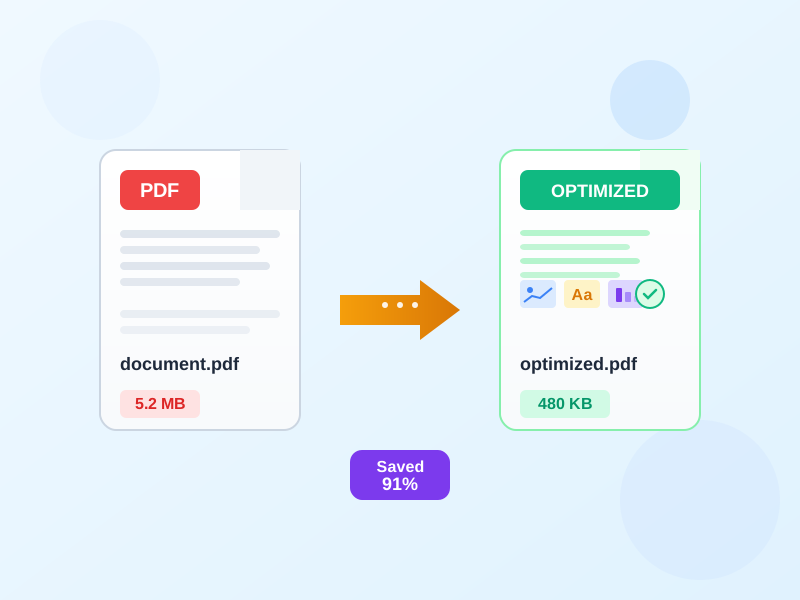
Large PDF files can be difficult to email and slow to upload. Our compressor re-encodes the images inside a PDF at the quality you choose and removes redundant data. In our test the default setting cut scanned documents by 46–99% and a photo PDF by 62%, while digital text documents lost 8–12%.
How PDF Compression Works
PDF compression reduces file size through multiple techniques working together. Image optimization is typically the most impactful. High-resolution photos often contain more detail than needed for screen viewing. Our compressor downsamples images and applies efficient compression algorithms.
Beyond images, PDF compression removes redundant data structures. It optimizes font subsets to include only characters actually used. Metadata and unnecessary embedded resources are eliminated. The result is a leaner file that opens faster and emails easily.
Choosing the Right Compression Level
Light compression (Screen/eBook) preserves maximum quality while still reducing size. This setting is ideal for documents with important images or detailed graphics. Content that may be printed should use this setting. Visual difference from the original is minimal.
Heavy compression (Web) prioritizes file size over quality. At a low quality setting—25 in our test—scans shrank 80–100% and a photo PDF 88%. Images are downsampled significantly, making this unsuitable for printing. It's excellent for email attachments and web uploads. Digital text shrinks far less at any setting (11–43% in the same test).
When to Compress PDFs
Compress PDFs when file size creates problems. This includes email bounces, slow uploads, or storage limits. Sluggish performance opening large files is another sign. Scanned documents and image-heavy PDFs benefit most, often shrinking from 50MB to 5MB.
Avoid compressing PDFs for professional printing. The quality reduction may be visible in print. Keep original files for archival purposes. Compress copies for distribution. Verify that compressed legal documents maintain required fidelity.
Understanding PDF File Structure
PDFs can contain embedded fonts, high-resolution images, vector graphics, and metadata. Each component contributes to file size differently. Fonts typically add 50-200KB per font family. Images vary dramatically—a single photo can add 5-20MB. Vector graphics remain compact.
Scanned PDFs are essentially image containers. Each page is stored as a full-resolution bitmap. These files are prime candidates for compression. A 100-page scanned document can exceed 100MB. Compression reduces this to 10-20MB while maintaining legibility.
Compression vs. Quality Trade-offs
All lossy compression involves trade-offs between file size and quality. Higher compression produces smaller files but may introduce visible artifacts. These include blocky regions in photos or blurry text. Effects are cumulative—repeatedly compressing degrades quality further.
For best results, always compress from the original PDF. Avoid compressing already-compressed versions. Preview output before distributing to ensure acceptable quality. If artifacts are unacceptable, try a lighter compression setting.
PDF Compression Best Practices
Organize your PDF workflow to compress at the right stage. Compress final versions rather than working files. Keep originals for edits—re-compressing compounds quality loss. Name compressed files clearly to distinguish them from originals.
Consider your audience when choosing compression levels. Internal documents can handle heavy compression. Client-facing materials and legal documents deserve lighter compression. Test compressed PDFs on different devices to ensure acceptable display quality.