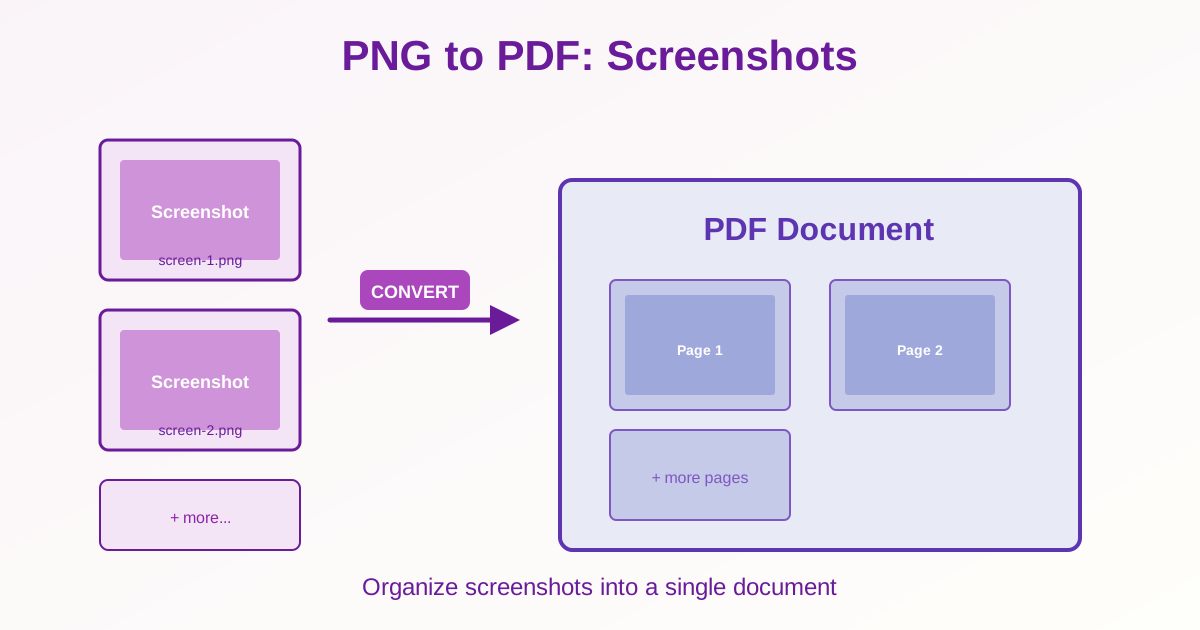
Screenshots are essential for documentation, tutorials, and bug reports.
Converting PNG screenshots to PDF organizes them into one professional document that's easy to share and review. This guide covers methods, best practices, and tips for creating high-quality screenshot documentation.
Why Convert Screenshots to PDF?
Common use cases for PNG to PDF conversion:
- Software documentation — step-by-step visual guides
- Bug reports — show error states and reproduction steps
- Tutorial creation — organized walkthrough screenshots
- User manuals — combine screenshots with instructions
- Project presentations — show UI designs or workflows
- Training materials — visual reference documents
How to Convert PNG Screenshots to PDF
Single Screenshot to PDF
- Upload your PNG screenshot
- Click "Convert to PDF"
- Download the single-page PDF
Multiple Screenshots to One PDF
- Upload all PNG screenshots (select multiple files or drag-and-drop)
- Arrange in the correct order (drag to reorder)
- Click "Merge to PDF" or "Create PDF"
- Download the multi-page PDF Each screenshot becomes one page in the PDF, displayed in the order you arranged them.
Preparing Screenshots Before Conversion
1. Name Files Sequentially
Rename screenshots so they sort correctly:
- Good: 01-login-screen.png, 02-dashboard.png, 03-settings.png
- Bad: Screenshot 2026-03-14 at 10.34.png (random timestamps) Sequential numbering ensures screenshots appear in the right order when you upload multiple files.
2. Crop Unnecessary Areas
Remove desktop backgrounds, taskbars, or irrelevant UI elements. Focus on the relevant content:
- Crop to application window only
- Remove browser address bars if not relevant
- Eliminate distracting elements
3. Annotate Before Converting
Add annotations while files are still PNG:
- Arrows pointing to important elements
- Text boxes explaining steps
- Highlighting or circles around key areas
- Blur sensitive information (passwords, personal data) Tools: Snagit, Greenshot, Windows Snipping Tool, macOS Preview, GIMP.
4. Standardize Dimensions
For professional-looking PDFs, make all screenshots the same size:
- Resize to consistent width (e.g., 1920px or 1280px)
- Maintain aspect ratio
- Use the same cropping approach for all screenshots
PNG vs JPG for Screenshots
Use PNG When:
- Screenshots contain text (PNG preserves text sharpness)
- UI elements, buttons, or interface components are shown
- Diagrams, charts, or line art are included
- Quality is more important than file size
Use JPG When:
- Screenshots show mostly photos or videos
- File size is a critical concern
- Slight quality loss is acceptable
For documentation: Always use PNG. Text clarity is essential for tutorials and manuals. See our JPG to PDF guide for photo collections.
Creating Professional Screenshot Documentation
Structure Your Document
Organize screenshots logically:
- Title page: Create a title screenshot or text page
- Overview: Show the starting point
- Step-by-step: One action per screenshot
- Result: Show the final outcome
Add Context
Screenshots alone may not tell the full story. Add text explanations:
- Annotate images with step numbers and descriptions
- Or create separate text pages between screenshots
- Or use PDF annotation tools after conversion
Maintain Consistency
- Use the same annotation style throughout
- Consistent arrow colors and text formatting
- Same screenshot dimensions and cropping approach
Common Use Cases
Software Tutorial
Create step-by-step guides:
- Take screenshots of each step in the process
- Annotate with numbers and brief explanations
- Arrange in order
- Convert to PDF for easy sharing
Bug Report
Document issues clearly:
- Screenshot the error state
- Show steps leading to the bug
- Include console errors or logs if relevant
- Compile into one PDF for the development team
UI/UX Design Presentation
Share design mockups or prototypes:
- Screenshot each screen or state
- Organize by user flow
- Add annotations explaining interactions
- Present as a PDF for stakeholder review
After Creating Your PDF
Compress if Needed
If the PDF is too large to email (25+ MB):
- Use PDF compression to reduce file size 50-70%
- Or compress PNG files before conversion
Add Text Pages
If you need text explanations between screenshots:
- Create text pages as PNG (use presentation software or design tools)
- Or create text-only PDFs separately
- Merge PDFs to combine screenshots and text pages
Extract Screenshots Later
To get PNG files back from the PDF:
- Use PDF to PNG conversion
- Each page becomes a separate PNG image
- Useful if you need to re-edit or reuse screenshots
Tips for Better Screenshot Documentation
Hide Sensitive Information
Before converting to PDF:
- Blur or black out passwords, API keys, personal data
- Use dummy data instead of real user information
- Remove email addresses and phone numbers
Use High-Resolution Screenshots
Capture at native resolution (don't scale up):
- On Windows: Use Snipping Tool or Win+Shift+S
- On macOS: Cmd+Shift+4 for selection, Cmd+Shift+3 for full screen
- Use built-in tools to avoid quality loss from third-party apps
Keep Original PNGs
Don't delete PNG files after creating the PDF. You might need to:
- Update the documentation later
- Re-annotate screenshots differently
- Use individual images elsewhere
Common Issues and Solutions
Screenshots in Wrong Order
Rename files with leading zeros (01, 02, ..., 10) before uploading. This ensures correct alphabetical sorting.
PDF File Too Large
PNG screenshots can be large. To reduce size:
- Compress PNG files before conversion (use PNG optimization tools)
- Reduce screenshot dimensions (1920px → 1280px if acceptable)
- Compress the final PDF
Text Looks Blurry in PDF
PNG should preserve text sharpness. If text is blurry:
- The original screenshot may be low-resolution (check source)
- Ensure you're not using JPG (use PNG for text)
- Take screenshots at native resolution, not zoomed
Related Tools
- JPG to PDF — For photo collections instead of screenshots
- Merge PDF — Combine screenshot PDFs with other documents
- Compress PDF — Reduce file size of screenshot PDFs
- JPG to PDF Guide — Compare PNG vs JPG for different uses
Conclusion
Converting PNG screenshots to PDF creates professional documentation that's easy to share and review. Name files sequentially for correct ordering, annotate screenshots before conversion, and crop to remove unnecessary elements. Use PNG for screenshots with text or UI elements—never JPG for documentation. Standardize dimensions for uniform pages. Compress the final PDF if file size is a concern. Keep original PNG files in case you need to update the documentation later.