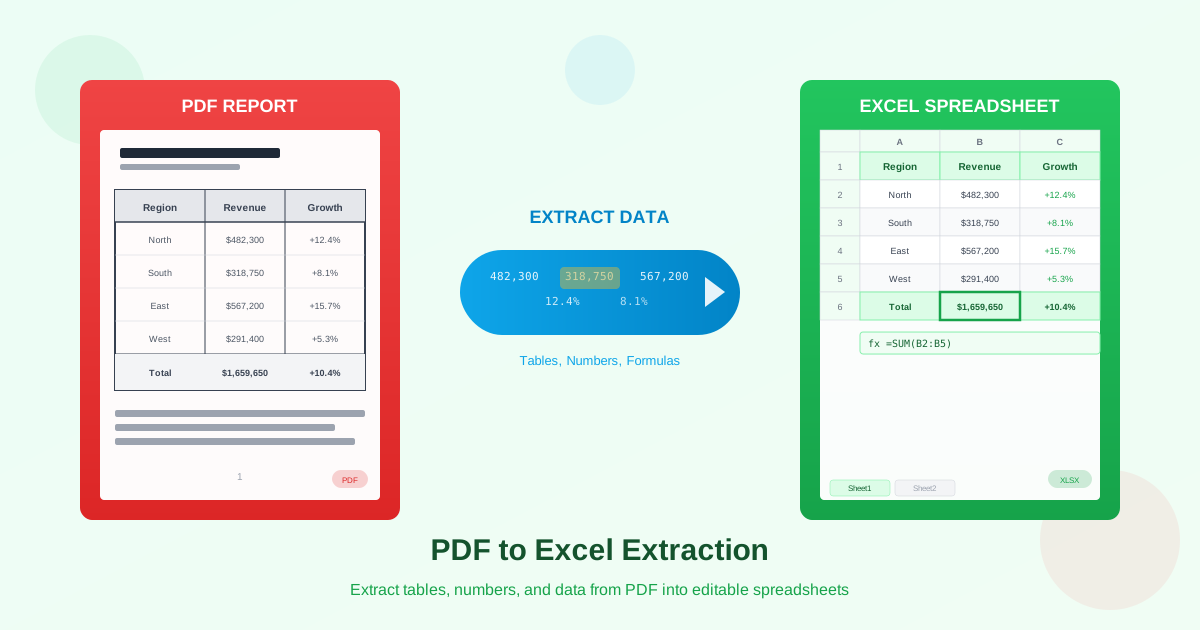
Getting tabular data out of a PDF and into Excel is one of the most common conversion tasks in business, finance, and research. Whether you need to extract data from PDF to Excel for quarterly reports, import invoice line items into a spreadsheet, or pull research data from published studies, the process involves more than a simple copy-paste. This guide walks through every aspect of PDF to Excel conversion — from understanding why it is challenging, to choosing the right extraction method, to troubleshooting the most common problems that arise after conversion.
Why Extracting Tables from PDF to Excel Is Difficult
PDF was designed for visual presentation, not for data exchange. When a table appears in a PDF, the file does not contain a spreadsheet-like grid. Instead, it stores individual text fragments positioned at exact coordinates on a page, along with drawn lines that create the visual appearance of rows and columns. There is no metadata saying "this value belongs to column B, row 3."
Excel, by contrast, organizes data in a structured grid where every cell has a defined address, data type, and formatting. Converting a PDF table to Excel means reconstructing that grid from visual cues — detecting where columns begin and end, identifying row boundaries, and associating each text fragment with the correct cell. This reconstruction is where things can go wrong.
Two Types of PDF Tables
Before converting, you need to identify what kind of PDF you have, because the approach differs significantly.
Text-Based PDFs
If you can click on text in the PDF and select it character by character, the PDF contains real text data.
These PDFs are created by software — exported from Excel, Word, accounting systems, or generated by web applications. Text-based PDFs produce the best conversion results because the converter can read the exact text content and coordinates directly from the file.
Use our PDF to Excel converter for text-based PDFs with clear table structure. Standard geometric extraction works reliably for tables with visible borders and consistent column widths.
Scanned PDFs (Image-Based)
If selecting text in the PDF grabs the entire page as an image, you have a scanned document. These PDFs contain photographs of pages rather than actual text. Converting scanned PDFs requires OCR (Optical Character Recognition) to first identify the text, then detect the table structure from the image.
Scanned PDF conversion is inherently less accurate. OCR may misread characters (especially numbers), and table line detection depends on scan quality. For scanned documents with tables, the AI-powered PDF to Excel converter produces better results because it uses machine learning to understand table layouts even when lines are faint or incomplete.
Standard vs AI Extraction: Choosing the Right Method
FileConvertLab offers two approaches for converting PDF files into Excel spreadsheets. Understanding their strengths helps you pick the right tool for each document.
Standard Geometric Extraction
Standard extraction analyzes the geometric layout of the PDF — it finds horizontal and vertical lines, calculates their intersections, and uses those intersections to define cell boundaries. Text positioned within each cell boundary gets placed into the corresponding Excel cell.
- Best for: Text-based PDFs with clear visible borders and consistent column structure
- Speed: Fast — processes most documents in seconds
- Accuracy: High for well-structured tables, drops for borderless or irregular layouts
- Limitations: Struggles with tables that rely on spacing instead of lines, merged cells, or uneven columns
AI-Powered Extraction
AI extraction uses trained models to recognize table structure the way a human would — by understanding context, alignment patterns, and visual grouping even when explicit borders are missing. It can detect tables in complex layouts, handle irregular column widths, and process scanned documents more accurately.
- Best for: Scanned PDFs, borderless tables, complex layouts, inconsistent formatting
- Speed: Slower — AI analysis takes more time, especially on multi-page documents
- Accuracy: Higher on complex documents, comparable on simple ones
- Advantages: Handles merged cells, multi-line cell content, and missing borders more reliably
Comparison Table
| Feature | Standard Extraction | AI Extraction |
|---|---|---|
| Text-based PDFs with borders | Excellent | Excellent |
| Borderless tables | Poor | Good |
| Scanned documents | Not supported | Supported with OCR |
| Merged cells | Basic detection | Advanced detection |
| Multi-line cell content | Often splits into rows | Keeps in single cell |
| Processing speed | 1-5 seconds | 10-60 seconds |
| Multiple tables per page | Detects separately | Detects and labels |
| Number recognition | Text as-is | Attempts numeric typing |
What Transfers Well — and What Doesn't
Understanding what converts reliably helps set expectations and plan for post-conversion cleanup.
Transfers Accurately
- Plain text content — labels, names, descriptions, and short strings
- Simple numbers — integers and decimals without special formatting
- Table headers — column and row headers with consistent positioning
- Basic cell alignment — left, center, and right alignment within cells
- Row and column count — the grid dimensions match the original in most cases
Often Needs Manual Adjustment
- Currency and percentage formats — symbols may be included in cell text, preventing Excel from treating values as numbers
- Date formats — dates arrive as text strings rather than Excel date values
- Merged cells — complex merge patterns may not reconstruct correctly
- Column widths — proportions approximate the original but rarely match exactly
- Cell background colors — shading may not transfer or may use different colors
- Formulas — PDFs contain only the displayed result, never the formula itself
Common Issues and How to Fix Them
Even well-converted spreadsheets need some cleanup. Here are the most frequent problems when you convert PDF to xlsx and their solutions.
Numbers Stored as Text
This is the single most common issue. Excel shows a green triangle in the corner of cells where numbers are stored as text. Formulas like SUM and AVERAGE return zero or errors because they cannot calculate text values. To fix: select the affected column, click the warning icon, and choose "Convert to Number." For bulk conversion, use Find & Replace to remove currency symbols first, then apply Number formatting.
Merged Cells Not Detected
When the converter misses a merged cell, the content may appear in only one cell while adjacent cells remain empty, or the text may split across multiple cells. Check areas where the original PDF had header cells spanning columns. Select the affected cells and use Format > Merge & Center to restore the merge.
Multi-Line Text Split Into Separate Rows
When a PDF cell contains text that wraps to multiple lines, standard extraction may interpret each line as a separate row. This shifts all subsequent data down, misaligning the entire table. The fix depends on the extent: for a few cells, manually merge the split rows; for widespread issues, try AI extraction which handles multi-line content more accurately.
Columns Misaligned
Data appearing in the wrong column usually means the converter misjudged a column boundary. This is common in tables where column widths vary significantly or where some cells have longer content that extends visually past the column border. Compare the first few rows against the original PDF to identify the offset, then cut and paste the misplaced data into the correct columns.
Empty Rows Between Data
Extra blank rows appear when the converter interprets whitespace in the PDF — such as additional spacing between table sections or page margins — as data rows. Select and delete the empty rows. If the table had section dividers in the PDF, those may also appear as blank rows.
Tips for the Best Extraction Results
Follow these practices to maximize conversion accuracy when you extract tables from PDF.
- Check the PDF type first. Open the PDF and try selecting text. If you can highlight individual words, use standard extraction. If the entire page selects as one block, you need AI extraction with OCR.
- Use the original source when possible. If the PDF was generated from Excel or another application, getting the original file is always better than converting from PDF. Ask the sender for the source document.
- Extract specific pages. For long documents where only certain pages contain tables, split the PDF first using a PDF tool and convert only the relevant pages. This reduces noise and improves accuracy.
- Prefer bordered tables. If you control the PDF creation (e.g., exporting from your own system), add visible borders to all tables before generating the PDF. This dramatically improves extraction accuracy.
- Clean scans produce better results. For scanned documents, high resolution (300 DPI+), good contrast, and straight alignment significantly improve OCR and table detection accuracy.
- Review immediately after conversion. Spot-check the first and last rows, verify column alignment, and confirm total rows match. Catching issues early saves time versus discovering problems deep into your analysis.
When to Use PDF to Word Instead
Not every table belongs in Excel. If the table is part of a larger document you need to edit — a contract, a report with narrative text around the table, or a form with tables embedded in flowing content — converting to Word preserves the full document context. Use our PDF to Word converter when you need to keep text, images, and tables together in one editable document. Use PDF to Excel when the table data itself is what matters and you plan to analyze, sort, chart, or calculate with the numbers.
For detailed guidance on table handling in Word documents, see our PDF tables to Word guide.
Step-by-Step: Convert PDF File to Excel Spreadsheet
Follow this workflow to convert a PDF file to Excel with the best possible outcome.
- Assess your PDF. Open it and determine whether it is text-based or scanned. Note the table complexity — borders, merged cells, multi-line content.
- Choose the extraction method. For text-based PDFs with clear borders, use standard PDF to Excel. For scanned, borderless, or complex tables, use AI-powered extraction.
- Upload and convert. Upload your PDF file and wait for the conversion to complete. Processing time depends on the document length and the method chosen.
- Download and review. Open the xlsx file in Excel. Check that column count matches, headers are in row 1, and data starts in the correct row.
- Fix number formats. Select numeric columns, remove currency symbols if needed, and apply Number or Currency formatting so Excel recognizes the values for calculations.
- Repair merged cells and alignment. Compare against the original PDF and fix any merge issues or misaligned columns.
- Add formulas. Since PDFs contain only displayed values, recreate any SUM, AVERAGE, or other formulas you need in the Excel version.
Converting Back: Excel to PDF
If you have edited your extracted data and need to share it as a PDF, the reverse conversion is straightforward. Use our Excel to PDF converter to create a polished, print-ready document from your spreadsheet. Set print area and page orientation in Excel before converting for the best layout.
Key Takeaways
- Identify your PDF type — text-based PDFs convert more accurately than scanned documents
- Choose the right method — standard extraction for simple bordered tables, AI extraction for complex or scanned content
- Expect number formatting issues — converting currency, percentages, and dates from text to proper Excel formats is almost always needed
- Merged cells need attention — verify header merges and spanning cells after every conversion
- Quality in, quality out — high-resolution scans and well-formatted source PDFs produce significantly better results
- Review before relying on data — always compare the converted spreadsheet against the original PDF before using the data for analysis ### Ready to Extract Your Data? Convert PDF tables to editable Excel spreadsheets. Choose standard extraction for bordered tables or AI for complex documents. PDF to Excel AI PDF to Excel