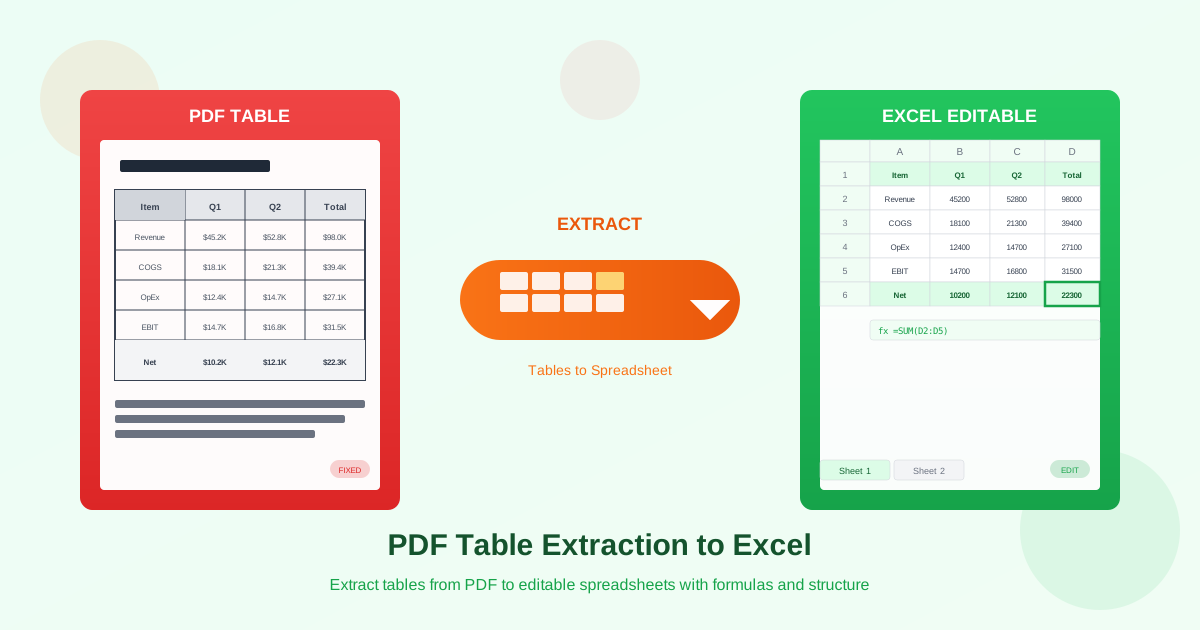
You need to extract tables from PDF to Excel, but pasting from a PDF turns your neatly structured data into a single column of text. Financial reports, invoices, scientific data, inventory lists — PDFs are full of tables that need to end up in a spreadsheet. The problem is that PDFs were designed for viewing and printing, not for data extraction. This guide walks you through every type of PDF table to Excel conversion: from simple grids to complex financial statements with merged cells and multi-page layouts. You will learn how to extract tables reliably, fix common issues, and decide when standard extraction is enough versus when AI-powered conversion is necessary.
Types of Tables in PDF Documents
Not every PDF table presents the same extraction challenge. Understanding what type of table you are working with helps you choose the right tool and set realistic expectations for the output quality.
Simple Grid Tables
The easiest tables to extract: uniform rows and columns, visible borders on all sides, no merged cells, and consistent column widths throughout. Product catalogs, price lists, and basic data tables usually fall into this category. Standard extraction handles these well, producing clean Excel output with minimal cleanup needed. Upload to the PDF to Excel converter and the result typically matches the original structure.
Complex Tables with Merged Cells
Headers spanning multiple columns, category rows stretching across the full table width, grouped sub-rows — merged cells are everywhere in professional documents. Financial statements commonly use merged header cells to group quarterly data under a year label, or to combine row categories. When you copy a table from PDF to Excel, merged cells are the number one source of misalignment.
The converter may split a merged cell into individual cells, push content into the wrong column, or drop the merge entirely. AI extraction recognizes merge patterns more reliably because it has been trained on thousands of table layouts with varying merge configurations.
Multi-Page Tables
Lengthy financial reports, audit documents, and inventory databases often contain tables that span 10, 20, or even 50 pages. Each PDF page is an independent unit with no structural link to the next, so the converter processes each page separately. The result is multiple table fragments that need to be combined into one continuous Excel sheet. Repeated headers on continuation pages add another complication: you must identify and remove duplicate header rows after merging. For multi-page table PDF to Excel conversions, plan time for post-processing even with the best extraction tools.
Tables in Scanned PDFs
Scanned documents — whether from a flatbed scanner, a phone camera, or a fax machine — store tables as images rather than text data. Extracting a scanned PDF table to Excel requires OCR (Optical Character Recognition) to first convert the image into machine-readable text, then table detection to identify the grid structure. This two-step process introduces more error opportunities than text-based extraction. Scan quality matters enormously: 300 DPI with good contrast produces much better results than a 150 DPI scan with shadows. For scanned documents, use AI PDF to Excel: it detects the tables on each scanned page and reads their cells with OCR, for PDFs up to 10 pages.
Borderless and Semi-Bordered Tables
Many modern documents use spacing and alternating row colors instead of explicit gridlines. These borderless tables look clean in PDF but confuse standard extraction tools that rely on line detection to identify cell boundaries. Semi-bordered tables — with horizontal rules but no vertical dividers, or outer borders only — present similar challenges. AI-powered extraction works significantly better here because it recognizes alignment patterns and whitespace gaps as column separators, rather than depending solely on drawn lines.
Step-by-Step: Extracting PDF Tables to Excel
Follow this process to extract PDF tables with the highest accuracy and least manual cleanup required.
Step 1: Check Whether Your PDF Contains Text or Images
Open the PDF and try to select text within the table. If you can highlight individual numbers and words, the PDF contains extractable text — proceed directly to conversion. If selecting text grabs the entire page as a block or nothing at all, you have a scanned/image-based PDF that needs OCR. This distinction determines which extraction pipeline will work: text-based PDFs use geometric or AI extraction, while scanned PDFs must pass through OCR first.
Step 2: Choose Your Extraction Method
For text-based PDFs with clean table borders, start with standard PDF to Excel conversion. It is faster and works well for straightforward tables. If the table has irregular structure, missing borders, or complex formatting, use AI-powered PDF to Excel extraction instead. The AI engine understands table semantics beyond just line positions, producing cleaner results for difficult layouts.
Step 3: Upload and Convert
Upload the PDF file. The server processes the entire document and detects all tables automatically.
Processing time depends on page count and table complexity — most documents under 20 pages finish in seconds. For large documents with dozens of tables, expect a slightly longer processing time as the engine analyzes each table independently.
Step 4: Review and Clean Up in Excel
Open the downloaded Excel file and compare each table against the original PDF. Check column alignment, verify that numbers transferred correctly (especially decimal separators and currency symbols), confirm merged cells are in the right places, and look for rows that may have split across two Excel rows.
Most cleanup takes 2-5 minutes per table for complex documents.
Fixing Common Table Extraction Issues
Even well-extracted tables often need targeted fixes. These are the most common issues when a PDF table is not converting correctly to Excel, with practical solutions for each.
Misaligned Columns
Data appears shifted to the wrong column, typically because the converter misjudged a column boundary.
This happens most often with tables that use spacing instead of lines between columns. In Excel, select the misplaced data, cut it, and paste it into the correct column. If many columns are affected, try re-extracting with AI conversion, which uses pattern recognition for more accurate column detection.
Split Rows
A single table row in the PDF may appear as two or three rows in Excel. This occurs when cell content wraps to multiple lines in the PDF and the converter treats each line as a separate row. Merge the affected rows in Excel: select them, right-click, and use Merge Cells, then clean up the combined text.
For tables with many wrapped cells, adjusting column widths in the original extraction can help.
Header Detection Issues
The converter may not recognize header rows, treating them as regular data, or may include non-header content in the header area. In Excel, manually bold the header row, apply filters if needed, and freeze the top row for easier navigation. For multi-level headers (common in financial tables), you may need to manually merge header cells and adjust formatting.
Numbers Extracted as Text
Currency symbols, thousands separators, and percentage signs can cause Excel to treat extracted numbers as text strings. You will notice this when SUM formulas return 0 or when numbers align left instead of right. Select the affected column, use Data > Text to Columns with default settings to force number parsing, or use Find & Replace to remove currency symbols before converting the column format to Number.
Missing or Extra Borders
Some tables arrive in Excel without any cell borders, while others have borders where the original had none. This is cosmetic and does not affect data integrity. Select the table in Excel, go to Home > Borders, and choose All Borders to add a clean grid, or No Border to remove unwanted lines.
Financial Statements and Invoices
Extracting PDF financial statements to Excel is one of the most demanded use cases for table extraction. Income statements, balance sheets, cash flow reports, and invoices all contain tabular data that analysts and accountants need in spreadsheet form for modeling, auditing, and reporting.
Financial tables have specific characteristics that make extraction more challenging than generic data tables:
- Indented sub-categories — line items nested under category headers (e.g., "Operating Expenses" followed by indented sub-items) may lose their hierarchy in Excel
- Negative numbers in parentheses — values like (1,250) instead of -1,250 may not parse as negative numbers in Excel
- Footnote references — superscript numbers or asterisks attached to values can corrupt numeric parsing
- Multi-year comparisons — columns for different fiscal years with merged header cells spanning year groups
- Subtotals and totals — bold or shaded summary rows that need to be distinguished from data rows For financial documents, AI-powered extraction generally produces better results because it recognizes accounting patterns and indentation hierarchies. After extraction, verify that subtotals actually equal the sum of their component rows — this is the fastest way to detect extraction errors.
Standard vs AI Extraction: Comparison
Choosing between standard geometric extraction and AI-powered extraction depends on your table type.
This comparison covers PDF to Excel with tables in different scenarios.
| Feature | Standard Extraction | AI Extraction |
|---|---|---|
| Simple bordered tables | Excellent | Excellent |
| Borderless tables | Poor | Good |
| Merged cells | Often misaligned | Usually preserved |
| Multi-page tables | Separate per page | Can detect continuation |
| Scanned PDFs | Not supported | OCR + table detection |
| Financial statements | Basic extraction | Hierarchy-aware |
| Processing speed | Fast | Moderate |
| Best for | Clean, well-structured PDFs | Complex, irregular layouts |
When AI Extraction Is Necessary
Standard geometric extraction works well for a large percentage of tables, but certain scenarios require the pattern-recognition capabilities of AI. Use AI-powered PDF to Excel conversion when:
- Tables lack visible borders — the AI detects columns from text alignment and spacing patterns
- Complex merged cell layouts — headers spanning variable numbers of columns, nested sub-headers
- Scanned or photographed PDFs — where OCR must combine with table structure detection
- Financial statements with indentation — maintaining the hierarchy of line items and sub-categories
- Mixed content pages — tables embedded among paragraphs, charts, and images on the same page
- Standard extraction produced poor results — when your first attempt has widespread column misalignment or missing data Start with standard extraction for clean-looking tables with visible borders. If the result needs extensive manual fixes, switch to AI extraction rather than spending time on manual cleanup. The AI engine often resolves the exact issues that made standard extraction fail.
Tips for Complex Table Extraction
These practical tips help you get better results when extracting difficult tables from PDFs to Excel:
- Check the source PDF quality — higher quality source PDFs (digitally created, not scanned) always produce better extraction results
- Try standard extraction first — it is faster and often sufficient for well-structured tables. Switch to AI only if needed
- Verify totals after extraction — compare a few subtotals and grand totals against the original PDF to catch extraction errors quickly
- Use Excel sorting to find errors — sort numeric columns to identify text values mixed in with numbers (they will sort differently)
- Handle multi-page tables systematically — extract the entire document, then merge table fragments in order, removing duplicate headers as you go
- Clean up number formats early — convert text-formatted numbers to proper numeric values before building formulas or pivot tables
- Keep the original PDF as reference — always verify the extracted data against the source, especially for financial and legal documents
PDF to Excel vs PDF to Word for Tables
If your end goal is tabular data analysis, Excel is almost always the better target format. However, there are cases where extracting to Word makes more sense:
- Choose Excel when you need calculations, sorting, filtering, pivot tables, or data import into other systems
- Choose Word when the table is part of a report you need to edit, and surrounding paragraphs and formatting must be preserved
- Choose Excel for invoices and financial statements where you will add formulas or perform analysis
- Choose Word for contracts and proposals where the table sits within flowing text and headings For a deeper look at table extraction to Word format, see the PDF Tables to Word guide.
Related Resources
- PDF to Excel Converter — standard geometric table extraction
- AI PDF to Excel — AI-powered extraction for complex and scanned tables
- PDF to Word Converter — when you need tables within full document context
- OCR PDF to Word — the text of scanned documents in Word
- All PDF Conversion Tools — complete set of PDF converters
- PDF Tables to Word Guide — extracting tables into Word documents ### Ready to Extract Your Tables? Start with standard extraction for clean tables or use AI-powered conversion for complex layouts. PDF to Excel AI PDF to Excel