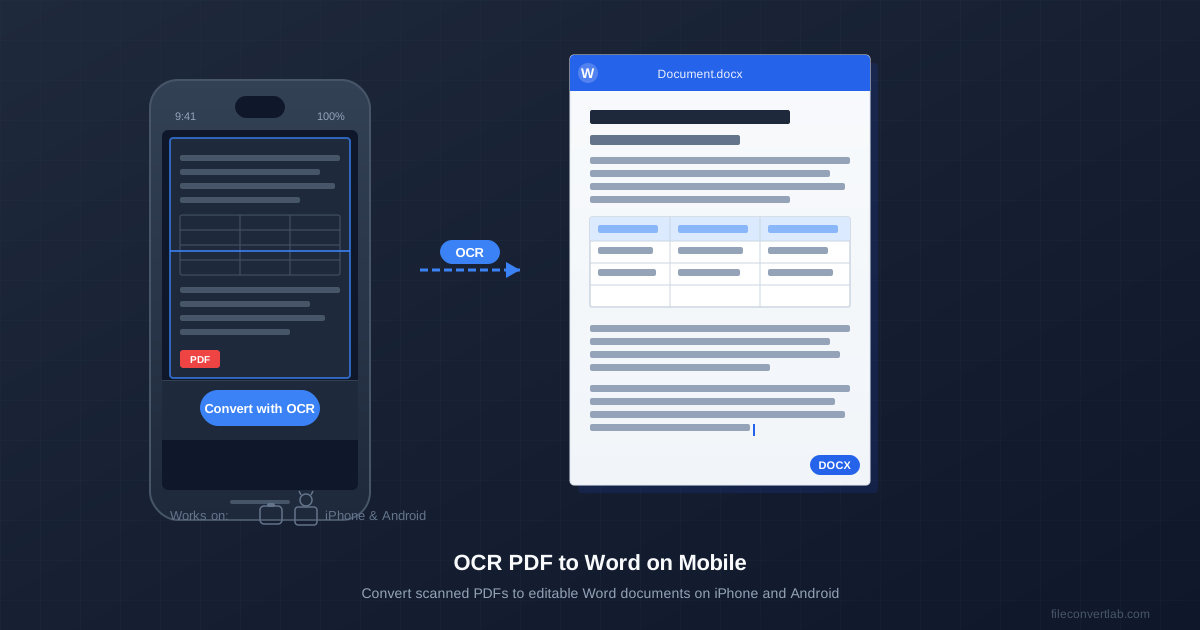
You received a scanned PDF — a contract, receipt or report — and you need to edit it, but you only have your phone. You don't need a computer: open the OCR PDF to Word converter in Safari or Chrome, upload the scan, pick the document language, and download a Word file. The page works in your phone's browser; the text recognition runs on our servers.
This guide covers the steps on iPhone and Android, what the Word file will look like, and when OCR will or won't work for your document.
First, check that you need OCR at all. Long-press a word in the PDF: if you can highlight individual words, the PDF already contains text — use regular PDF to Word instead. If nothing gets selected, or the whole page does, it's a scan and needs OCR.
How to Convert Scanned PDF to Word on iPhone
Safari or any other browser on iPhone works fine. No app installation required.
- Open the OCR tool. Go to fileconvertlab.com/ocr/pdf-to-doc in Safari or Chrome on your iPhone.
- Upload your scanned PDF. Tap the upload area, then choose Files to access iCloud Drive and local storage, or Photos if you photographed the document. The file uploads over your internet connection.
- Select the document language. Pick it from the menu (29 languages). If you leave it on Automatic, the script on each page is recognised and the matching model is used. The output is a Word DOCX; if you only need searchable text, use the searchable PDF tool instead (see Alternatives below).
- Start conversion and wait. Every page is recognised, so the time grows with the page count. Keep the browser tab open until the download button appears.
- Download the Word file. Tap the download button. iOS will save the file to Files → Downloads. Open it in Word for iOS, Pages, or any compatible app.
How to Convert Scanned PDF to Word on Android
The process on Android is identical — Chrome, Firefox, or Samsung Internet all work.
- Open the OCR converter in Chrome. Navigate to fileconvertlab.com/ocr/pdf-to-doc.
- Upload the PDF. Tap the upload area. Android will show a file picker — navigate to your Downloads folder, Google Drive, or wherever the PDF is stored. You can also upload directly from Google Drive if the file is there.
- Choose the language and convert. Same as iPhone — pick the document language and start conversion.
- Download to your device. The file saves to your Downloads folder. Open it with Word for Android, WPS Office, or Google Docs (which can open DOCX files from your device).
If you need to edit the result in Google Docs, tap the DOCX file in your file manager, share it to Google Drive, then open it in Docs. Docs converts DOCX automatically on open.
What the Output Will Look Like
OCR produces a functional Word document, but not a pixel-perfect clone of the original.
Here's what to expect:
- ✓ Plain paragraphs: Text flows correctly into editable paragraphs. You can select, copy, and reformat it like any Word document.
- ✓ Simple tables: Rows and columns are usually recognized and placed into a proper Word table, though cell widths may need adjustment.
- ✓ Headings and lists: Large title lines become Word headings, and lines that start with a bullet or a number become Word list items — check them, since detection works from the layout.
- ✗ Fonts and styling: The text comes out in Word's default font, without bold, italics or underlining — OCR recognises characters, not typefaces.
- ✗ Multi-column layouts: Newspaper-style or magazine layouts with two or three columns don't convert reliably. Text may merge across columns or appear in the wrong order.
- ✓ Logos, photos and charts: They're cropped from the scan and placed as pictures where they were on the page — images, not editable objects.
Tips for Better OCR Results on Mobile
The quality of the scan decides the quality of the text. If the output looks garbled, fix the scan first.
- Use a scanner app, not a plain photo. Scanner modes (Notes on iPhone, Google Drive scan, Microsoft Lens) flatten the page and correct the angle. A regular camera photo of paper is often skewed, which OCR misreads.
- Good lighting, no shadows. Use even, bright light. Shadows from your hand create dark patches OCR can mistake for characters.
- Pick the document language. The language menu chooses the recognition model. If your document is French, select French — otherwise accented characters (é, à, ü) are more likely to be misread.
- Mind the limits. Guests can convert PDFs of up to 20 pages and 100 MB (100 pages on a free account). For a longer document, cut it into parts with Split PDF and convert them one by one.
Non-Latin scripts — Arabic, Persian, Russian, Greek, Hindi, Thai, Chinese, Japanese, Korean and more are in the language menu; select the specific language before converting. Handwriting in any script is much harder than print. For script-specific advice, see OCR for non-Latin scripts; to work page by page from photos, use the image to Word OCR converter.
After Conversion: Editing the Word Document on Your Phone
Once you have the DOCX file, you have several options for editing it on mobile:
- Word for iOS/Android: opens and edits DOCX files; some features need a Microsoft 365 subscription.
- Google Docs: Open the DOCX file from Google Drive. Docs converts it automatically. Good for light edits; some complex formatting may shift.
- Apple Pages (iPhone): Opens DOCX with good compatibility. Can save back to DOCX format.
- WPS Office (Android/iPhone): Free alternative with solid DOCX support and no mandatory subscription for basic editing.
If the Word document will eventually go back to PDF — for example, you're editing a form and need to send it as a PDF — you can convert the edited DOCX back to PDF using our Word to PDF converter.
Alternatives: When a Full Word Document Isn't What You Need
Sometimes you don't need a DOCX — you just need the text. Consider these alternatives:
- Searchable PDF: If you need to search the document but not edit it heavily, convert to a searchable PDF instead. The original visual layout stays intact, but you can now select, copy, and Ctrl+F through the text.
- Plain text: If you just need the raw text content — for pasting into another app, email, or note — use our OCR PDF to text converter which outputs plain text without any Word formatting overhead.
- Excel: If your scanned PDF is mostly tables, AI PDF to Excel puts them into a spreadsheet, which is easier to work with than a table in Word.