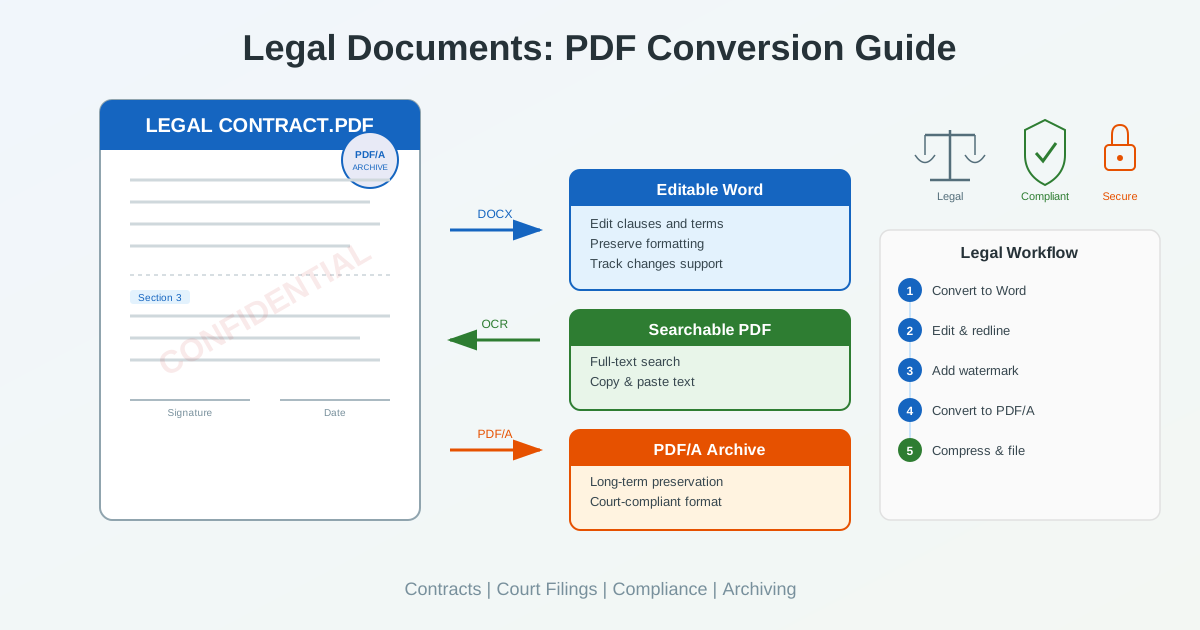
Legal pdf conversion is a daily necessity for law firms, corporate legal departments, courts, and compliance teams. Contracts arrive as scanned images that need to be searchable. Court filings require specific PDF formatting. Archived documents must remain readable for decades. Whether you need to convert legal documents from PDF to Word for editing, scan legal documents to searchable PDF for discovery, or prepare court-compliant PDF/A files for long-term archiving, getting the conversion right matters — a formatting error or lost clause can have real consequences. This guide covers every aspect of legal document conversion: from contracts and court filings to redaction, watermarks, e-signatures, and compliance standards.
Why Legal Documents Require Special Handling
Legal documents are not ordinary files. A misplaced paragraph, altered margin, or lost footnote can change the meaning of a contract clause or violate court filing rules. When you convert legal documents between formats, preserving every detail is not optional — it is a professional requirement.
- Document integrity: Every word, number, and formatting element must survive the conversion exactly as it appeared in the original
- Regulatory compliance: Courts and regulatory bodies mandate specific document formats, fonts, margins, and metadata standards
- Audit trail: Legal workflows require tracking who changed what and when — converted documents must support version control and change tracking
- Long-term preservation: Legal documents may need to be readable and verifiable 10, 20, or 50 years from now, requiring archival-grade formats
- Confidentiality: Legal files contain privileged information that demands secure handling during every conversion step
Converting Contracts: PDF to Editable Word
Contract pdf conversion is one of the most common legal document tasks. A counterparty sends a contract as a PDF. Your team needs to review it, suggest changes, and redline specific clauses. To do that, you need an editable Word document — not a static PDF.
When to Convert a Contract to Editable Word
- Redlining and negotiation: Track Changes in Word is the industry standard for contract negotiation. Converting the PDF to DOCX lets both parties see proposed modifications clearly
- Template creation: Convert an executed contract into a reusable Word template for similar future agreements
- Clause extraction: Pull specific sections from a contract for inclusion in other documents, briefs, or summaries
- Accessibility compliance: Some jurisdictions require documents to be available in editable formats for accessibility purposes
How to Convert a Contract PDF to Word
The conversion process depends on whether the PDF is text-based (digitally created) or image-based (scanned).
For text-based PDFs — contracts created in Word, Google Docs, or other editors and exported to PDF — use a standard PDF to Word converter.
The tool extracts the embedded text, tables, headers, footers, and formatting directly. Text-based conversion preserves the original structure with high accuracy because the character data is already present in the file.
For scanned contracts — physical documents that were photographed or scanned — you need OCR (Optical Character Recognition) to convert the image into editable text. OCR analyzes the scanned image, recognizes individual characters and words, and produces a Word document with the extracted text. Scan quality directly affects accuracy: clear, high-resolution scans at 300 DPI or higher produce the best results.
Preserving Contract Formatting During Conversion
Legal contracts have specific formatting that must be preserved: numbered clauses, indented sub-sections, defined terms in bold or caps, signature blocks with alignment, and headers with case references. When converting, verify these elements after conversion:
- Numbered paragraphs: Section numbers (1.1, 1.2, 2.1) should maintain their hierarchy and indentation
- Defined terms: Terms in bold, italics, or quotation marks must retain their emphasis
- Tables and schedules: Financial tables, payment schedules, and appendix tables should keep their column alignment and borders
- Headers and footers: Page numbers, document titles, and confidentiality notices in headers and footers
- Signature blocks: Signature lines, date fields, and witness sections at the end of the document
OCR for Scanned Legal Documents
Many legal documents exist only as scanned images — older contracts, court exhibits, notarized documents, and records from paper-based systems. To scan legal documents to searchable PDF or convert them to editable formats, OCR is essential.
Why Searchability Matters in Legal
During litigation discovery, legal teams may need to search through thousands of documents for specific names, dates, amounts, or clauses. Image-only scans cannot be searched — every page must be read manually.
OCR transforms these image files into searchable, indexable text, reducing review time from days to minutes.
A searchable PDF retains the original scan appearance while adding an invisible text layer that enables full-text search, copy-paste, and indexing.
OCR Best Practices for Legal Documents
- Scan at 300+ DPI: Higher resolution produces more accurate character recognition. Legal documents with fine print or footnotes benefit from 400 DPI
- Use grayscale or black-and-white: Color scans are unnecessary for text documents and increase file size without improving OCR accuracy
- Straighten skewed pages: Crooked scans reduce recognition accuracy. Most OCR tools include automatic deskewing
- Select the correct language: Legal documents in multiple languages or with Latin legal terms (habeas corpus, res judicata) need appropriate language settings
- Verify critical sections: Always manually verify OCR output for numbers, dates, and proper names — these are where errors have the most impact in legal context
The OCR PDF to Word tool handles scanned legal documents by recognizing text and producing an editable DOCX file, making it straightforward to convert scanned contracts and exhibits into working documents.
PDF/A: The Standard for Legal Archiving
PDF/A for legal archiving is not just a best practice — in many jurisdictions, it is a requirement. PDF/A (ISO 19005) is the archival variant of PDF designed to ensure documents remain readable and visually identical over decades without depending on specific software or operating systems.
What Makes PDF/A Different from Regular PDF
| Feature | Regular PDF | PDF/A |
|---|---|---|
| Font embedding | Optional | Required — all fonts embedded |
| External references | Allowed (links, multimedia) | Prohibited — fully self-contained |
| JavaScript | Allowed | Prohibited — no executable code |
| Encryption | Allowed | Prohibited — must be openly accessible |
| Color management | Optional | Required — ICC profiles embedded |
| Metadata | Optional | Required — XMP metadata standard |
PDF/A Conformance Levels
- PDF/A-1b: Basic conformance — visual preservation. Ensures the document looks the same when opened. Most commonly required level for court filings
- PDF/A-1a: Full conformance — adds logical structure and tagged content for accessibility. Required when documents must be screen-reader compatible
- PDF/A-2b: Extended features — supports JPEG 2000 compression, transparency, and PDF layers. Suitable for complex documents with graphics
- PDF/A-3: Allows embedded files (such as original Word or Excel source documents). Useful for legal archives that need to preserve both the rendered PDF and the editable source
Creating PDF/A from Legal Documents
The simplest workflow is to prepare your document in Word — with all formatting, headers, and signatures in place — and then convert it to PDF using a Word to PDF converter that supports PDF/A output. Verify the resulting file with a PDF/A validator before submitting it to courts or archives. Common issues include missing font subsets, unsupported transparency effects, and external hyperlinks that violate PDF/A requirements.
Court Filing Requirements and PDF Standards
When you convert court documents to PDF for electronic filing, the document must meet specific technical requirements set by the court. These legal document formatting requirements vary by jurisdiction, but several standards are nearly universal.
Common Court PDF Requirements
- Page size: Letter (8.5 x 11 inches) in the United States; A4 (210 x 297 mm) in most other jurisdictions
- Margins: Typically 1 inch (2.54 cm) on all sides, though some courts require wider left margins for binding
- Font: 12 or 14 point, typically Times New Roman, Courier, or a similar serif font. Some courts now accept sans-serif fonts for body text
- Line spacing: Double-spaced body text is standard in many U.S. courts; single-spaced for block quotations and footnotes
- Page numbering: Sequential numbering, usually centered at the bottom of each page
- Text-searchable: Courts increasingly require that all PDFs be text-searchable, not image-only scans
- File size limits: Federal CM/ECF typically allows 35-50 MB per document. Large exhibits may need PDF compression to meet these limits
- Bookmarks: For documents over 25 pages, many courts require PDF bookmarks for each major section and exhibit
E-Filing Workflow
A typical court e-filing workflow for legal documents follows these steps: draft the document in Word with the court-required formatting, convert to PDF with embedded fonts, add bookmarks for sections and exhibits, verify text searchability by testing Ctrl+F on key terms, check file size against the court limit, name the file according to the court's convention, and upload through the court's electronic filing system.
Document Integrity and Authentication
Maintaining document integrity throughout the conversion process is critical for pdf for legal documents.
Opposing counsel, judges, and regulatory bodies need assurance that the document they receive is exactly what was created or executed.
E-Signatures in Legal PDF Workflows
Electronic signatures on legal documents come in two forms: image-based signatures (a picture of a handwritten signature) and certificate-based digital signatures (cryptographically verified). When converting between PDF and Word:
- Image signatures transfer during conversion as picture elements. They appear in the Word document but carry no cryptographic verification
- Digital signatures are bound to the specific PDF file. Converting a digitally signed PDF to Word invalidates the signature. The document content transfers, but the cryptographic proof of authenticity does not
- Best practice: Keep the originally signed PDF as the authoritative copy. If you need to edit the content, convert to Word for editing, then generate a new PDF for re-signing
Version Control for Legal Documents
During contract negotiation, multiple versions of a document circulate between parties. Maintaining a clear version history prevents disputes about what was agreed. When converting between PDF and Word for redlining, follow a consistent naming convention that includes the version number, date, and party (e.g., NDA_v3_2026-05-20_CounterpartyRedline.docx). After each round of edits in Word, convert back to PDF for distribution using a Word to PDF converter to maintain formatting consistency.
Redaction: Removing Sensitive Information
Legal documents frequently contain information that must be removed before sharing — Social Security numbers, financial account details, protected health information, or privileged communications. PDF redaction permanently removes this data from the file.
Proper Redaction vs Covering Text
A critical distinction: drawing a black rectangle over text in a PDF editor is not redaction. The underlying text remains in the file and can be extracted by selecting the area and pasting, or by using PDF parsing tools. True redaction removes the text data from the file entirely, replacing it with a permanent mark that cannot be reversed. For legal documents, always use a dedicated redaction function — never rely on visual covering alone.
Redaction Workflow for Legal Teams
- Identify sensitive content: Search for SSNs, account numbers, dates of birth, and other PII using pattern-matching tools
- Mark areas for redaction: Select text or regions that need to be removed
- Apply redaction: Execute the redaction to permanently delete the underlying data
- Verify completeness: Search the redacted PDF for any remaining instances of the sensitive data — check both visible text and metadata
- Remove metadata: Strip document properties, author names, revision history, and comments that might contain sensitive information
- Save as new file: Save the redacted version as a separate file, preserving the unredacted original in a secure location
Watermarks for Legal Document Control
Watermarks serve essential document control functions in legal workflows. A DRAFT watermark prevents someone from acting on an unapproved version of a contract. A CONFIDENTIAL stamp signals privileged content.
A COPY watermark distinguishes duplicates from originals.
The PDF watermark tool lets you add text stamps like DRAFT, CONFIDENTIAL, PRIVILEGED, or FOR REVIEW to legal documents before distribution. Common legal watermark uses include:
- DRAFT: Applied to contracts and agreements during negotiation to prevent premature reliance on unapproved terms
- CONFIDENTIAL: Required on documents shared during discovery or due diligence to maintain privilege claims
- ATTORNEY-CLIENT PRIVILEGE: Marks communications and work product protected under legal privilege
- FOR SETTLEMENT PURPOSES ONLY: Applied to offers and communications made during settlement negotiations
- EXHIBIT [letter/number]: Labels documents submitted as evidence in legal proceedings
Compressing Legal PDFs for Filing and Sharing
Legal documents — especially those with scanned exhibits, photographs, or medical records — can grow to hundreds of megabytes. Court e-filing systems, email servers, and document management systems impose file size limits that oversized PDFs cannot meet.
PDF compression reduces file size while preserving text quality and readability. For legal documents, prioritize text clarity over image compression — a slightly larger file with perfectly legible text is better than a smaller file where signatures or handwritten notes become unreadable. Typical compression can reduce a scanned legal document from 50 MB to 5-10 MB without visible quality loss on text content.
Legal Document Conversion Best Practices
Follow these guidelines when handling legal pdf conversion to ensure accuracy, compliance, and security.
- Always keep the original: Never overwrite the source document. Maintain the original PDF or Word file alongside every converted version
- Verify after conversion: Compare the converted document against the original page by page. Check paragraph numbering, table alignment, and special characters
- Embed fonts: When creating PDFs from Word, embed all fonts to prevent substitution on other systems. This is mandatory for PDF/A compliance
- Use descriptive file names: Include document type, parties, date, and version in the file name. Avoid generic names like "document.pdf"
- Strip metadata before sharing: Remove author names, tracked changes, comments, and revision history from documents shared with opposing parties
- Test searchability: After OCR or conversion, use Ctrl+F to search for a few key terms to confirm the text is properly indexed
- Check page count: Conversion can sometimes shift content across page breaks. Verify the converted document has the expected number of pages
- Compress last: Apply compression as the final step, after all other editing and formatting is complete
Common Legal Document Types and Conversion Needs
| Document Type | Common Conversion | Key Requirement |
|---|---|---|
| Contracts | PDF to Word (for redlining) | Preserve clause numbering and formatting |
| Court filings | Word to PDF (for e-filing) | Meet court formatting and size rules |
| Scanned exhibits | Image to searchable PDF (OCR) | Text searchability for discovery review |
| Archived records | PDF to PDF/A | Long-term preservation and compliance |
| Deposition transcripts | PDF to Word (for annotation) | Accurate text extraction with page/line numbers |
| Real estate documents | Scanned PDF to Word (OCR) | Legible signatures and notary stamps |
| Regulatory filings | Word to PDF/A | Compliance with agency submission standards |
Related Tools for Legal Document Workflows
- PDF to Word Converter — Convert contracts and legal documents to editable DOCX for redlining and editing
- Word to PDF Converter — Create court-compliant PDFs from Word documents with embedded fonts
- OCR PDF to Word — Convert scanned legal documents to searchable, editable text
- PDF Editor — Annotate, highlight, and add notes to legal PDFs during review
- PDF Watermark — Add DRAFT, CONFIDENTIAL, or PRIVILEGED stamps to legal documents
- PDF Compressor — Reduce legal PDF file size for court e-filing and email sharing
Conclusion
Legal pdf conversion requires precision that goes beyond ordinary document handling. Every clause, signature, and formatting element must survive the conversion intact. For contracts, use PDF to Word conversion to enable redlining and negotiation. For scanned documents, OCR transforms image-only files into searchable, editable text. For long-term archiving, PDF/A ensures your documents remain readable and compliant for decades. And for every legal document you share, consider watermarks for status control, redaction for sensitive data, and compression for file size limits. The legal profession runs on documents — handling their conversion correctly is not just a technical task, it is a professional responsibility.