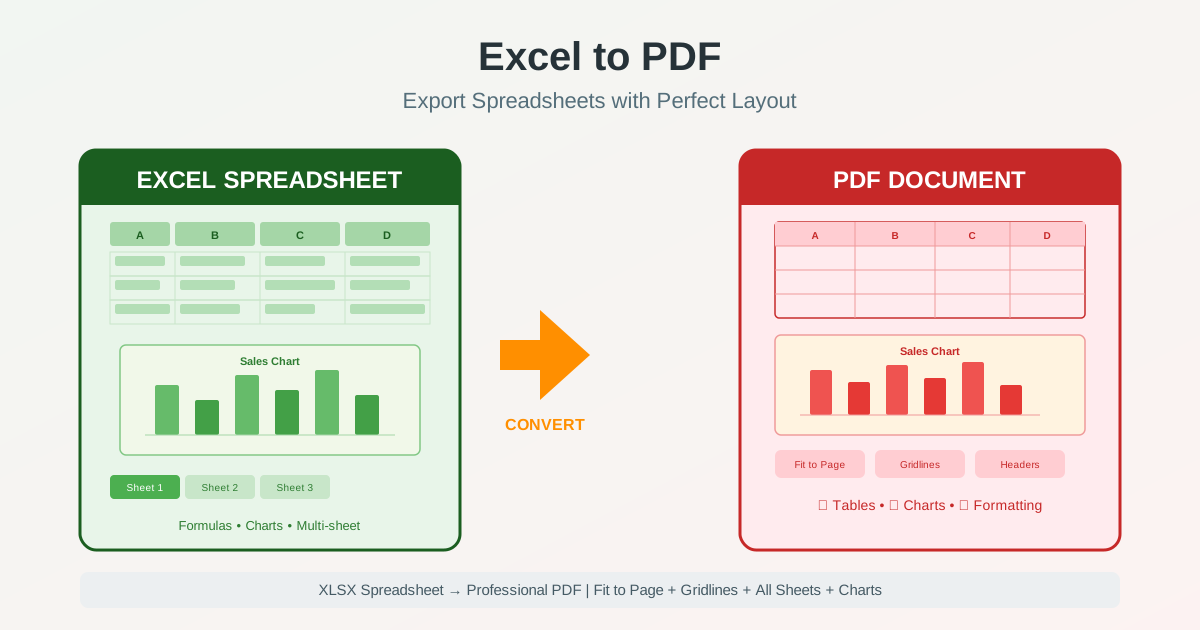
Converting an Excel spreadsheet to PDF should be straightforward — save the file, get a clean document. In practice, columns get cut off, gridlines disappear, charts shift position, and the second sheet is nowhere to be found. These problems happen because Excel and PDF handle page layout fundamentally differently. Excel works with an infinite grid that expands in every direction. PDF works with fixed pages of specific dimensions. When you convert Excel to PDF, the challenge is fitting dynamic spreadsheet content onto static pages without losing data or readability. This guide covers every practical aspect of Excel to PDF conversion — from page scaling and print areas to multi-sheet exports and formatting preservation.
Why Convert Excel to PDF
Sharing an XLSX file means the recipient needs Excel or a compatible application to open it. They can also modify the data — intentionally or accidentally. Converting your spreadsheet to PDF solves both problems: PDF files open on any device without special software, and the content cannot be easily altered.
Universal readability. Clients, stakeholders, and colleagues can open a PDF on any computer, phone, or tablet. No version compatibility issues, no missing fonts, no formula errors from different Excel versions. The document looks identical everywhere.
Data integrity. When you share a budget, financial report, or invoice as a PDF, the numbers stay exactly as you set them. No one can accidentally edit a formula, delete a row, or drag a column boundary. What you export is what they see.
Professional presentation. PDFs look polished for distribution. Reports sent to management, proposals shared with clients, and regulatory filings all benefit from the fixed-layout consistency of PDF. The spreadsheet data is preserved, but the presentation is controlled.
Reduced file size. Excel files with formulas, macros, and embedded objects can be large. A PDF version of the same data is typically smaller because it contains only the rendered output — no formulas, no hidden sheets, no macro code. If your PDF still needs to be smaller, you can compress the PDF after conversion.
The Core Problem: Fitting a Spreadsheet onto Pages
The single most common frustration when converting Excel to PDF is content getting cut off.
You have 15 columns of data, but only 10 fit on a Letter or A4 page. The remaining 5 columns either overflow to a second page (breaking your table in half) or get silently clipped. Understanding why this happens is the key to fixing it.
Excel does not have page boundaries while you work. The grid extends infinitely to the right and downward. When you export to PDF, the application must decide how to split that grid into pages. The default settings often produce poor results because they do not account for the actual width of your data.
How to Fit All Columns on One Page
The fastest fix for columns being cut off is to tell Excel to scale the output so all columns fit on a single page width. Go to Page Layout tab, find the Scale to Fit group, and set Width to 1 page. Leave Height set to Automatic. This scales the spreadsheet horizontally to fit one page while allowing the rows to flow across as many pages as needed vertically.
For very wide spreadsheets, this scaling may shrink the text to an unreadable size. In that case, consider switching to landscape orientation first, then applying the fit-to-page scaling. If the data is still too small, split the spreadsheet into logical groups of columns and export each group separately, or reduce column widths by abbreviating headers and narrowing padding.
Using Print Area to Control What Gets Exported
If your workbook has data scattered across the sheet — notes in column Z, scratch calculations below the main table, reference values off to the side — you need to define a print area. Select the cells you want in the PDF, go to Page Layout > Print Area > Set Print Area. Only the selected range will be exported to PDF.
This is essential for large workbooks where the default export tries to include every cell that has content, resulting in dozens of mostly blank pages. Setting the print area tells the converter exactly which data matters.
Page Orientation: Landscape vs Portrait
Choosing the right orientation before you convert Excel to PDF makes a significant difference in readability. The default in Excel is portrait (tall page), but most spreadsheets are wider than they are tall.
Use landscape for wide spreadsheets. Financial reports with many columns, project schedules with date-based columns, comparison tables, and any spreadsheet where the data extends horizontally. Landscape gives you roughly 30% more width, which is often enough to fit columns that would otherwise be cut off.
Use portrait for tall spreadsheets. Contact lists, inventories, to-do lists, and any data that is primarily a long vertical list with few columns. Portrait fits more rows per page, reducing the total page count.
You can set different orientations for different sheets in the same workbook. Right-click the sheet tab, choose the page setup, and set the orientation for that individual sheet.
When you export all sheets to PDF, each sheet will use its own orientation setting.
Gridlines, Headers, and Row/Column Labels
By default, Excel does not include gridlines or row/column labels when exporting to PDF.
This surprises many users because the gridlines are visible on screen while editing.
However, those on-screen gridlines are a visual aid for editing — they are not part of the document's print output.
Including Gridlines in the PDF
To convert Excel to PDF with gridlines visible, go to Page Layout tab and find the Gridlines section. Check the Print checkbox.
This adds thin borders to every cell, making the table structure clear in the PDF output.
Without gridlines, data in adjacent cells can blend together, especially when cells have no borders applied manually.
If you have already applied custom cell borders to your spreadsheet, the gridlines option adds additional lines around all cells — including those you may have intentionally left borderless. In that case, use manual borders (Home > Borders) for precise control instead of the print gridlines setting.
Adding Row and Column Headers
For spreadsheets where cell references matter — audit documents, data review sheets, collaborative workbooks — include the column letters (A, B, C) and row numbers (1, 2, 3) in the PDF. Go to Page Layout > Headings and check the Print checkbox. This is particularly useful when the PDF will be used alongside the original Excel file, so reviewers can reference specific cells by address.
Repeating Header Rows on Every Page
When a table spans multiple pages, the column headers from row 1 only appear on the first page by default. The remaining pages show data without context — you cannot tell what each column represents. Fix this by going to Page Layout > Print Titles and setting Rows to repeat at top to your header row (typically $1:$1). Every page of the PDF will now begin with your column headers.
Converting Multiple Sheets to PDF
Excel workbooks often contain multiple sheets — monthly data on separate tabs, summary and detail views, different departments or categories. When you export to PDF, the default behavior in most methods is to export only the active sheet. To include all sheets or specific sheets, you need to select them before exporting.
Exporting all sheets: Click the first sheet tab, hold Shift, and click the last tab to select all sheets. Alternatively, right-click any sheet tab and choose Select All Sheets. Then use File > Save As > PDF or File > Export to create the PDF. All selected sheets appear as consecutive pages.
Exporting specific sheets: Hold Ctrl and click each sheet tab you want to include. Only those sheets will be part of the PDF export. This is useful when your workbook has scratch sheets, temporary data, or internal notes that should not appear in the shared PDF.
Each sheet retains its own page setup settings — orientation, scaling, margins, gridlines.
Set up each sheet individually before exporting the group. Check each sheet in Print Preview to confirm the layout is correct.
Formatting Preservation: What Transfers and What Does Not
Most visual formatting in Excel transfers well to PDF because PDF captures the rendered output — what you see on screen. However, interactive and dynamic elements do not survive the conversion.
Elements that transfer: Cell values, fonts, colors, bold/italic/underline, cell borders, merged cells, number formatting (currency, percentages, dates), conditional formatting colors, charts, images, shapes, text boxes, headers and footers, and page breaks.
Elements that do not transfer: Formulas (only their results appear), hyperlinks (some methods preserve clickable links, others do not), drop-down lists, data validation rules, macros, pivot table interactivity, comments and notes (unless you specifically configure them to print), and hidden rows/columns (they remain hidden in the PDF, which is usually the desired behavior).
If you need to share a document where the recipient will edit the data, share the Excel file itself or convert to a different editable format. PDF is for sharing a final, view-only version of your data.
Charts and Visual Elements
Excel charts convert to PDF as static images. The chart appears exactly as it does on screen — bar heights, colors, labels, legends all transfer. However, interactive chart elements like hover tooltips, data point selection, and dynamic filtering are lost. The chart becomes a picture.
For the best chart quality in PDF, ensure your chart is sized appropriately within the print area before exporting. Charts that extend beyond the page boundary will be clipped or pushed to a separate page. Resize the chart to fit within the printable area, or place charts on a dedicated sheet with its own page setup optimized for the chart dimensions.
Sparklines, data bars, icon sets, and other conditional formatting visuals also transfer as rendered images. The visual output is preserved; the underlying data logic is not.
Step-by-Step: Convert Excel to PDF
Follow this workflow to get a clean, properly formatted PDF from your spreadsheet.
1. Prepare the layout. Switch to Page Layout view (View tab > Page Layout) to see page boundaries while editing. Adjust column widths, set orientation (landscape for wide data), and define your print area if needed.
2. Configure page settings. In the Page Layout tab, set margins (Narrow margins give more space for data), enable gridlines and headings if needed, set print titles for repeating headers, and configure scaling (Fit All Columns on One Page if content is being cut off).
3. Preview before exporting. Press Ctrl+P to open Print Preview. Scroll through all pages. Check that no columns are cut off, headers repeat correctly, charts are positioned properly, and page breaks fall in logical places.
4. Export to PDF. Use File > Save As and select PDF from the format dropdown, or use File > Export > Create PDF/XPS.
Choose Standard quality for print or Minimum size for email distribution.
5. Verify the output. Open the resulting PDF and compare it to your Print Preview. Check the first page, the last page, and any pages with charts or wide tables. If anything is off, adjust the settings in Excel and re-export.
Alternatively, upload your XLSX file to the Excel to PDF converter for a quick conversion without opening Excel. The tool handles page scaling and formatting automatically.
Common Issues and How to Fix Them
Columns Cut Off on the Right Side
The most frequent problem. Your table has 12 columns but only 9 appear on the page.
Fix: set Page Layout > Scale to Fit > Width to 1 page. If that makes text too small, switch to landscape orientation first. As a last resort, narrow your widest columns or split the table into two logical groups.
Blank Pages in the PDF
Extra blank pages usually come from content in cells far from your main data — a stray character in cell AA1000 or a formatting applied to empty cells. Select all unused cells and delete them (not just clear contents, but delete). Then set a print area covering only your actual data range.
Charts Appearing on Wrong Pages
Charts that overlap page boundaries get pushed to the next page or split awkwardly.
In Page Layout view, resize and reposition charts so they fall within a single page.
For large charts, give them a dedicated sheet and set that sheet to landscape orientation.
Text Appearing Too Small
This happens when fit-to-page scaling shrinks a wide spreadsheet to fit one page width.
The fix depends on the content: use landscape orientation, reduce the number of columns per page, use smaller margins (Page Layout > Margins > Narrow), or accept a two-page-wide layout and let columns flow across pages.
When to Share Excel Instead of PDF
PDF is the right format for final, view-only distribution. But there are cases where sharing the XLSX file directly is more practical.
The recipient needs to edit the data. If someone needs to update numbers, add rows, or modify formulas, they need the Excel file. A PDF cannot be meaningfully edited as a spreadsheet. If they receive a PDF and need to extract the data back to a spreadsheet, they would need to convert PDF to Excel , which always involves some data loss.
The workbook contains pivot tables or interactive dashboards. These features only work in Excel. A PDF captures a static snapshot, losing all interactivity.
Share the XLSX for analysis, and a PDF summary for stakeholders who just need to review the results.
Collaboration is ongoing. While the spreadsheet is being actively edited by multiple people, sharing it as Excel (or via cloud-based platforms like OneDrive or Google Sheets) keeps everyone working on the same version. Export to PDF only when the data is finalized.
For a broader overview of PDF conversion tools and when to use each format, explore the full range of supported conversions.
Advanced Tips for Clean Excel to PDF Output
Use page breaks strategically. Insert manual page breaks (Page Layout
Breaks > Insert Page Break) to control where tables split across pages. Place breaks between logical sections — between departments, months, or categories — rather than letting Excel split in the middle of a data group.
Add headers and footers. Include page numbers, the file name, date, or a confidentiality notice in the PDF by using Excel's built-in header and footer feature (Insert > Header & Footer). This adds professional context to multi-page exports.
Test with Print Preview every time. The single most effective habit for clean PDF output is checking Print Preview (Ctrl+P) before exporting. What you see in Print Preview is exactly what the PDF will contain — including page breaks, scaling, margins, and orientation.
Consider file size. Excel files with high-resolution images or hundreds of charts produce large PDFs. If the PDF needs to be emailed or uploaded to a system with size limits, choose the Minimum Size option during export, or compress the PDF after creation.
Freeze panes do not affect the PDF. Frozen panes are an on-screen navigation feature in Excel. They have no effect on the PDF output. If you want headers to appear on every page, use Print Titles (repeating rows) instead of freeze panes.